I’ll be honest—my phone used to be a graveyard of half‑hearted to‑do list apps. You know the scene: I’d download one, add three tasks, get overwhelmed, and delete it by Tuesday. But about two years ago, I stumbled onto Trello. At first, I thought, “Isn’t this software for marketing teams and sprint planning?” Oh, how wrong I was. Once I realized I could bend those same Kanban boards to organize my own messy life, it was like someone flipped a switch. Whether you’re fixing up your bathroom, planning a side‑hustle website, or just trying to keep up with weekly chores, Trello can become your digital brain. In this little walkthrough, I’ll share exactly how I started and why, even in 2026, Trello’s still my go‑to tool.
The Bare‑Bones Structure That Just Clicks
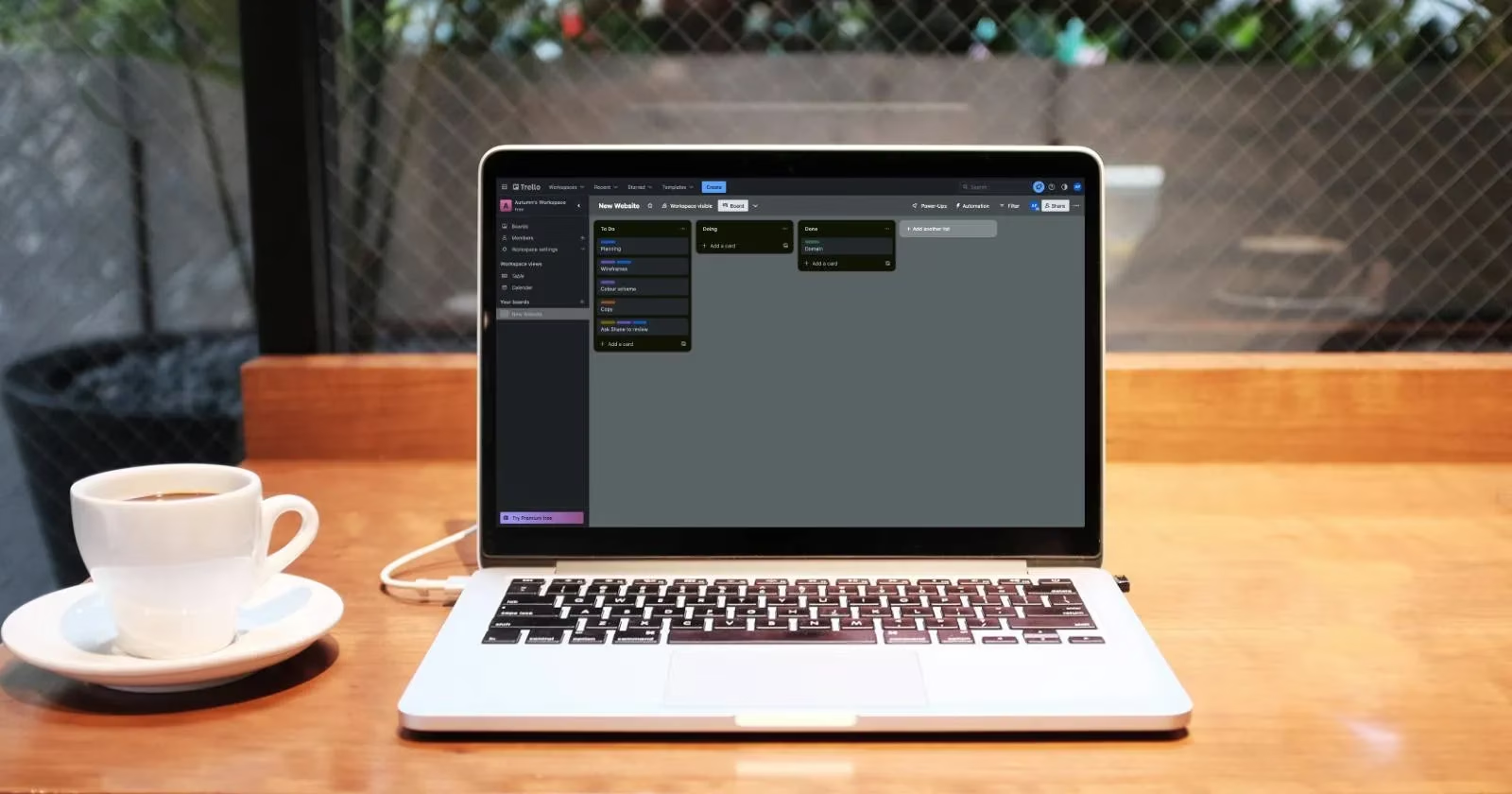
Everything in Trello sits inside a Workspace—think of it as your personal command center. Inside that, you create Boards for bigger projects. Then, every task is a Card, and you slide these cards between Lists that represent stages. The most common setup? To Do, Doing, and Done. It’s so simple I almost dismissed it at first. But the magic is in the movement: dragging a card physically from “To Do” to “Doing” gives you that tiny dopamine hit, and looking at a finished “Done” column at the end of the week feels weirdly satisfying.
For instance, when I decided to build my own website, I created a board called “New Website.” Cards became: “Buy domain name,” “Sign up for hosting,” “Sketch wireframes,” “Write intro copy.” Each card is its own little world. I could open it and scribble notes, drop in a due date, or even add tiny to‑do checklists like “research DNS settings.” That flexibility means I can go deep when needed or stay breezy with just a task title.
Kicking Off Your Very First Board
If you’re the type who panics at a blank canvas (raises hand), Trello’s got your back. Under the Board tab in the sidebar, you’ll spot a button that basically begs you to “Create a new board.” Hit it, and a little window pops up where you name the board, choose who can see it, and pick a background color. I’m boring—I always go for a solid, soft grey or muted teal. Anything else, and my eyes start doing the cha‑cha when I’m trying to focus.
After clicking Create, you get a fresh board with three default lists. Rename them silly, if you like: maybe “Brain Dump,” “In the Trenches,” and “Victory Lap.” Or just keep the classic. To add a task, click “Add a card” in any list, type a title, and you’re off. I love that you can just vomit all your tasks into the “To Do” list without sweating the details. Later, you can go back, pop open each card, and add descriptions, checklists, labels—even a cover image that snaps my attention to the high‑priority stuff.
And here’s a neat trick I wish I’d known earlier: the template gallery. Instead of building from zero, you can browse hundreds of ready‑made boards for things like “Home Renovation,” “Job Search,” or “Gardening Calendar.” Pick one, tweak it, and you’ve saved a mountain of set‑up time. Seriously, it’s like having a project manager buddy who already drew the map.
Cards That Do a Lot More Than Hold Text
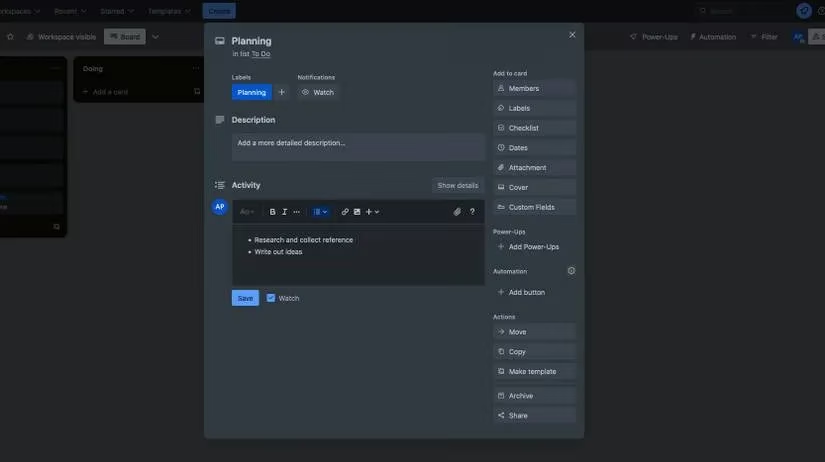
Okay, so a card is not just a sticky note. Right from the back of a card, you can attach files (goodbye scattered email attachments!), add labels to color‑code by priority or category, and write comments to yourself that timestamp automatically. I use the description field for quick context: the password for the host somewhere? Note it there. Need to remember the plumber’s quote? Paste it in. The activity log shows every change, so if you ever wonder, “When did I add that link?” just scroll down.
Another feature that saved my bacon more than once is the checklist. Inside a card, you can add multiple checklists and tick things off. For my website project, I had a checklist for “pre‑launch SEO tasks” with ten tiny steps. Watching each checkmark fill gave me that video‑game progress‑bar feeling.
You can also set a due date and, even more clever, a start date. The card will then gently remind you when things are slipping. No more of that frantic “Oh yes, the plumber is scheduled… 24 years ago” mess.
Bringing Others Into the Fold
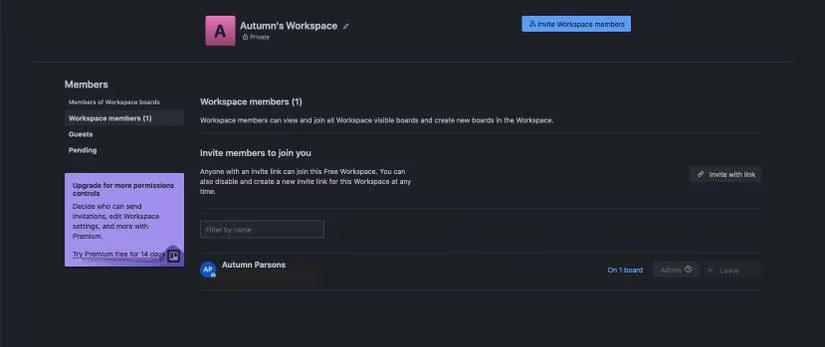
Trello might shine alone, but honestly, it’s a hoot with a partner. If you’re planning a trip with a friend or tackling a house project with your spouse, you can invite them to your Workspace. There are two permission levels that make life easy:
-
Workspace members – They see all your visible boards and can create new ones. Perfect for a room‑mate or a partner you deeply trust. Anything private, you just set that board to secret.
-
Guests – This is the “I just want you in this one board” option. Ideal for collaborating with a freelancer or a nosy neighbor who doesn’t need to see your grocery list.
Once they’re in, you can assign cards to them, tag them in comments, and even watch their cards (a little Watch button ensures you get pings when they move stuff). My friend Lisa and I used Trello to plan a backyard vegetable garden. I’d assign her “research tomato varieties,” she’d leave a comment with a photo of her findings, and I’d drop a “Nice!” sticker. It turned a boring planning session into a chatty, productive week.
Why It’s Stuck With Me in 2026
Look, I’m not here to bash other tools. But there’s something about the sheer visual simplicity of Trello that makes my scattered brain feel at peace. It’s like a digital bulletin board where I can see everything at once. I’ve tried app after app—fancy ones with AI integration, time‑trackers, mind‑maps—but I always come back to those slick little cards.
And here’s the best part: for everything I just described, you don’t need to spend a penny. Trello’s free account still lets you create up to ten boards per Workspace, unlimited cards, unlimited storage (up to 10MB per file), and all the core features. Sure, there are paid tiers with more automations and bigger file limits, but if you’re just managing personal projects, the free tier is more than generous. In a world where subscription fatigue is real, that’s a breath of fresh air.
So, if you’ve been sitting on the fence, just give it a whirl. Build a board for your next home project or even a weekly meal plan. Drag a couple of cards around and let the “Done” column grow tall. You might be surprised how much lighter your brain feels when it doesn’t have to remember everything all at once. And if you mess up, well, you can always delete the board and start over. No judgment here—I’ve done that twice just this month.
Comments