I used to run my workweek like a chaotic battle royale: every task landed wherever it wanted, my inbox was the storm circle, and by Wednesday I was crouched behind a spreadsheet wondering who shot my focus. Then I tried day theming, a productivity method that gives each weekday a single theme. In 2026, with notifications multiplying like rabbits in a patch note, this simple trick still feels like a legendary loot drop. Day theming is a type of task batching: instead of flipping between email, writing, planning, and admin like a caffeinated pinball, you group similar tasks and give them a dedicated day. For me, it’s the difference between a clean speedrun and a blind playthrough with the controller upside down.

The idea is beautifully simple: pick one aspect of your work and park it on a specific day. Tuesdays might be social media and email catch-up; Thursdays might be networking. Freelance writers can pitch on Monday, draft on Tuesday, revise on Wednesday, and promote on Thursday. A nonprofit person might plan fundraising on Monday, organize volunteers on Tuesday, and plan events on Wednesday. The themes are yours to customize, which is great because my brain rejects one-size-fits-all systems faster than a bad party invite. Day theming is like giving each weekday its own lane in a bowling alley, except the bumpers are recurring calendar reminders and the bowling ball is my attention span. It keeps me from rolling into the snack bar.
Why does it work? Single-tasking. Focusing on one type of task at a time tends to be more effective than multitasking, which often makes us inefficient. Day theming takes that focus and stretches it across a whole day. It reduces decision fatigue, prevents momentum loss from task switching, and adds variety to the week. I also find it weirdly comforting: my Monday self doesn’t need to solve Thursday problems. My Thursday self is a different character with a different loadout.
The method is flexible. For some jobs, several days on one theme makes sense. For others, a mixed schedule is better. I like a weekly quest log that looks like this:
| Day | Theme | Gamer-brain note |
|---|---|---|
| Monday | Deep work / drafting | Boss fight. Do not disturb. |
| Tuesday | Email and admin | Side quests. Clear the map. |
| Wednesday | Meetings and collaboration | Party mode. Communicate. |
| Thursday | Promotion and outreach | Loot hunt. Send the messages. |
| Friday | Review and planning | Save point. Check inventory. |
You can use day theming outside work, too. Monday for meal planning, Tuesday for batch cooking, Wednesday for laundry, Saturday for family time. It corrals almost any activity into your schedule. It’s not a straitjacket; it’s a coat rack. You still choose what to hang there.
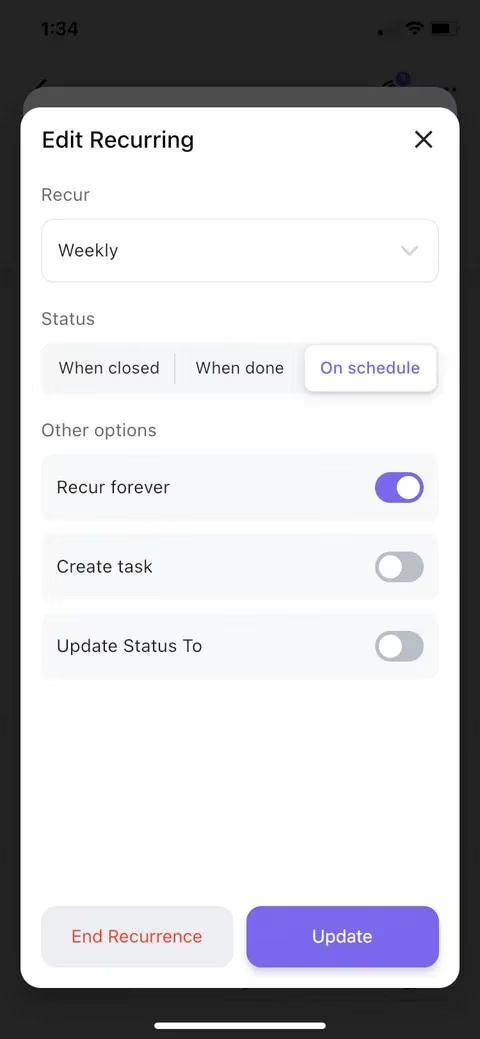
For tools, I’ve tested the usual suspects. In ClickUp, I create a new task from the Home screen, name it, tap Add Date, choose a due date, then tap Add recurring. I select weekly for a traditional day-theming schedule or build a custom setup. I decide whether the next task appears when the first is completed or closed, or whether it runs on a schedule; tasks completed ahead of time can automatically create next week’s task. I make sure ‘recur forever’ is on, then repeat for the rest of the week. It’s like prepping a fighting-game combo in training mode: same inputs, cleaner execution, fewer accidental supers.
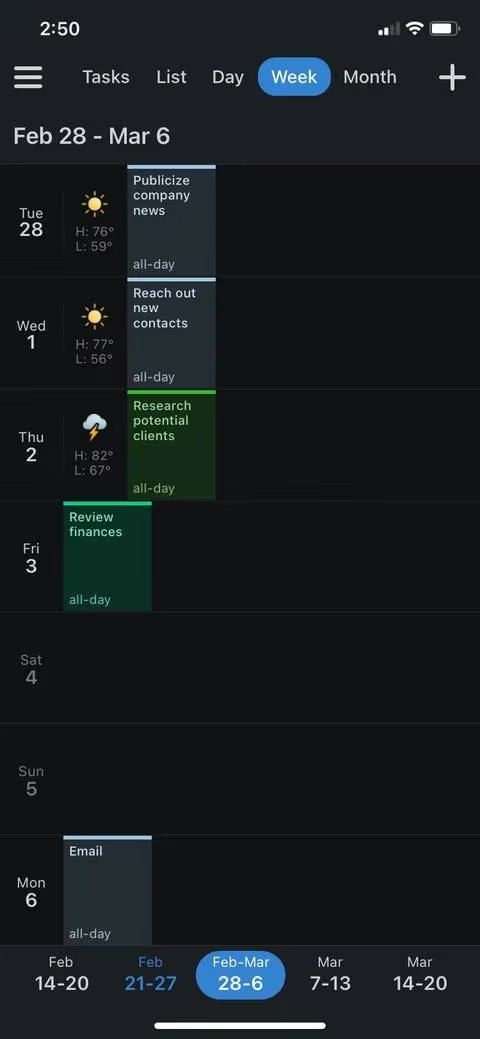
Planner apps work well too. In Calendars: Planner & Organizer, I tap the Plus button, name the event, scroll to Repeat, choose weekly, and save. Then I repeat for the other themes. Color-coding each day gives me next-level organization, and the app has plenty of personalization options. It requires a subscription, but there’s a free week to try it first. The app turns my calendar into a tidy quest board instead of a pile of mystery meetings.
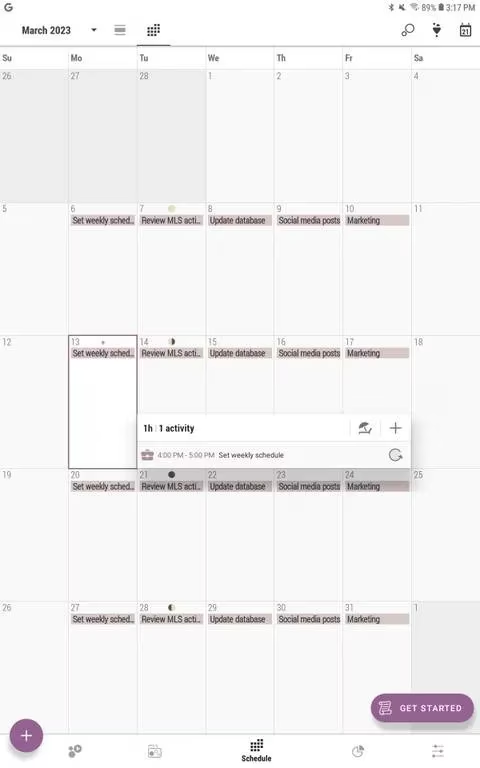
Time Planner: Schedule & Tasks is another solid choice. From the Schedule screen, I tap the plus button, name the activity, select a day, choose the repeating feature, select weeks, highlight the days I want, and tap the checkmark. The free version has plenty of functionality and no annoying ads; you can set unlimited categories and tasks. The premium version adds reminders, detailed statistics, and attachments. I like that I can start free and only upgrade if my inner completionist demands more stats.
Day theming won’t magically turn my to-do list into a victory screen. But it does give my week structure, reduce context switching, and make both work and life feel less like a random encounter table. If your brain is a goblin that loves novelty but hates being yanked between tasks, give day theming a try. Pick a theme, set it to repeat, and let your calendar do the tanking for once.
Comments