Imagine being a circus juggler trying to keep track of flaming torches, rubber chickens, and chainsaws simultaneously—that's what monitoring critical Excel cells across multiple sheets feels like. Enter Excel's Watch Window, the unsung hero lurking in the Formulas tab since 2007, now more indispensable than ever in 2025. This digital sentinel acts like a personal surveillance butler for your spreadsheet, eliminating the need for frantic tab-hopping between income statements, balance sheets, and cash flow projections. It’s the equivalent of having X-ray goggles for your financial models, letting you observe real-time value changes while staying firmly planted on one worksheet. For finance professionals drowning in multi-sheet workbooks, this feature is less a luxury and more a survival tool—like discovering an oxygen mask mid-airplane nosedive.
The Watch Window: Your Spreadsheet's Personal Conductor
Think of the Watch Window as an orchestra conductor for your cells—it doesn't play the instruments but ensures every violin (cell) and trumpet (formula) stays perfectly synchronized across different sections (sheets). Unlike Excel's simpler 'Split View', this tool tracks specific cells across any workbook tab, updating values like a live news ticker. For example, when tweaking accounts receivable on your balance sheet, you can simultaneously monitor how net cash flow reacts on another tab. It’s like having a financial crystal ball that actually works.
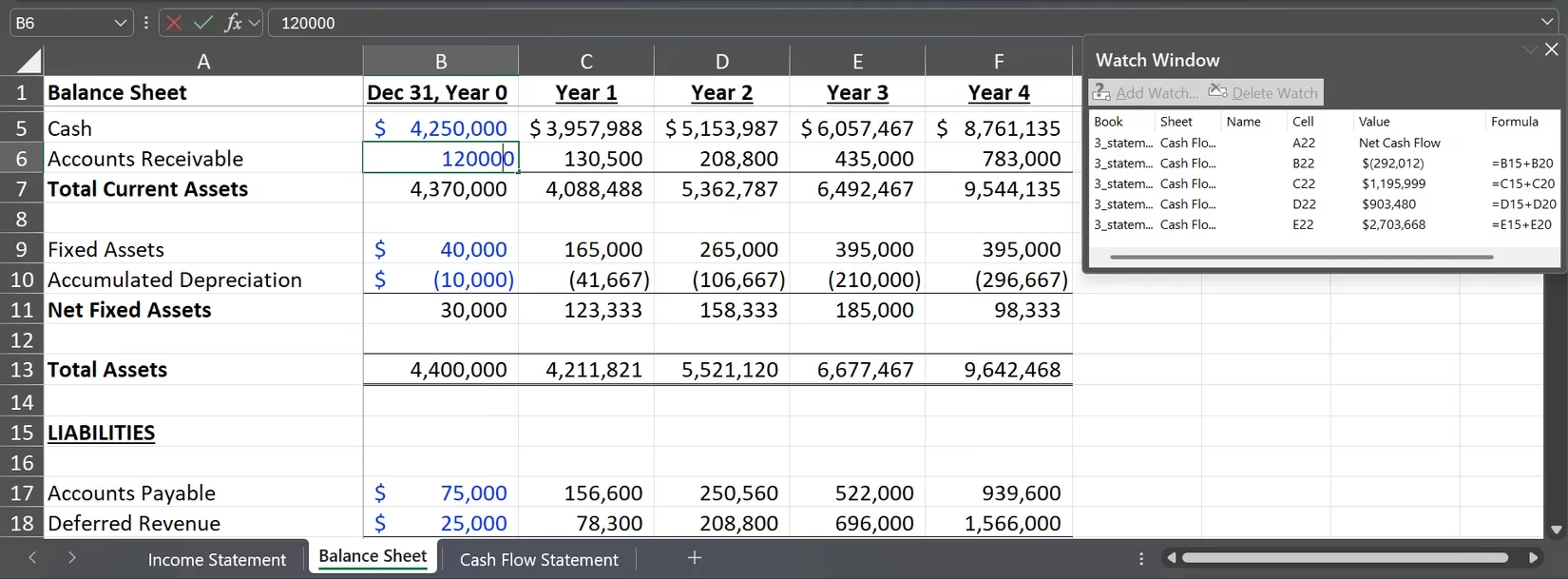
Summoning Your Digital Butler: A Three-Step Ritual
Activating this guardian requires no dark arts—just three clicks:
1️⃣ Navigate to Formulas > Watch Window (it's hiding between 'Error Checking' and 'Calculate Now')
2️⃣ Click Add Watch and highlight your target cells
3️⃣ Confirm with Add in the pop-up dialog
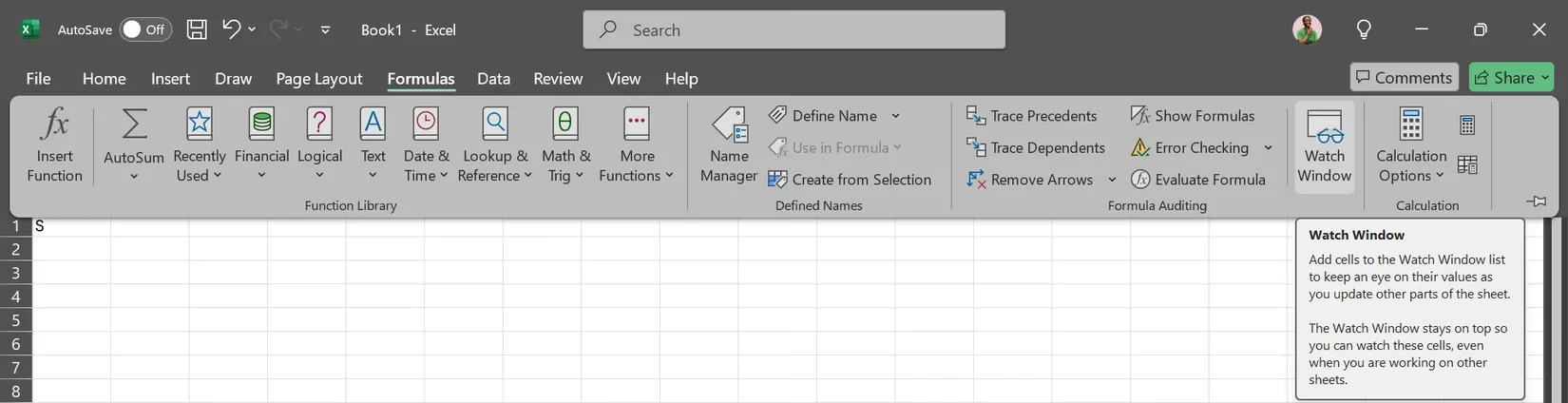
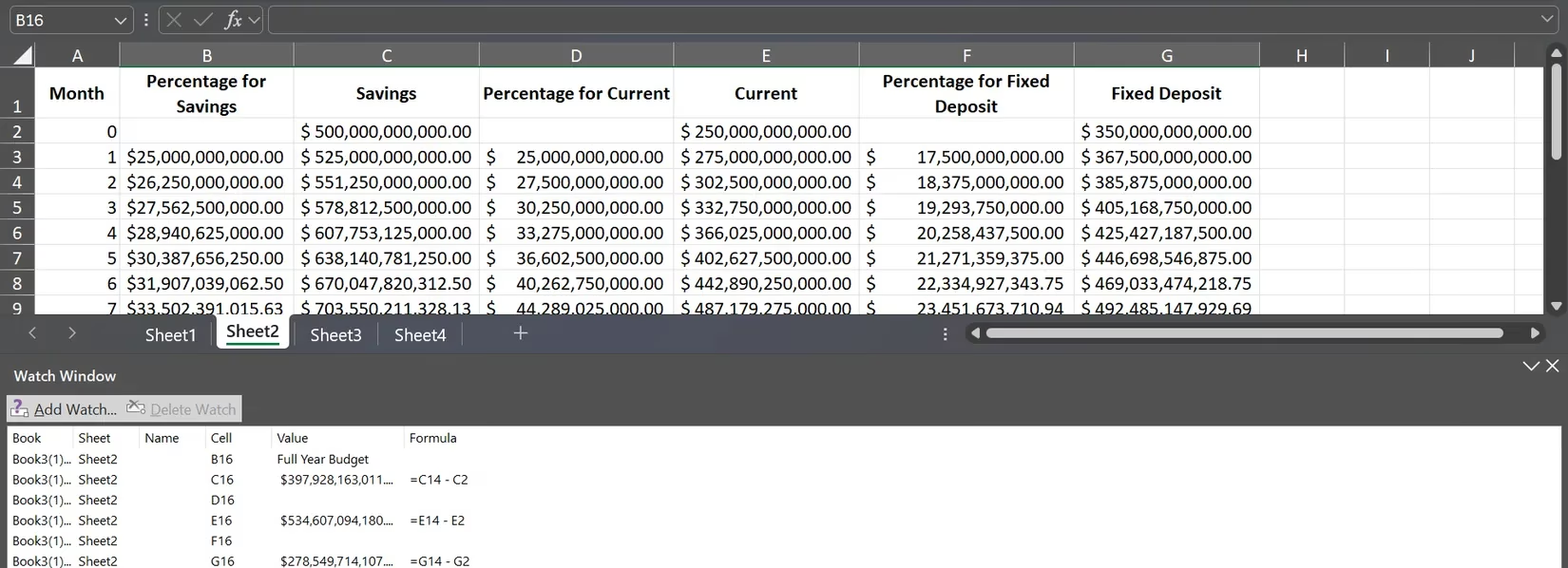
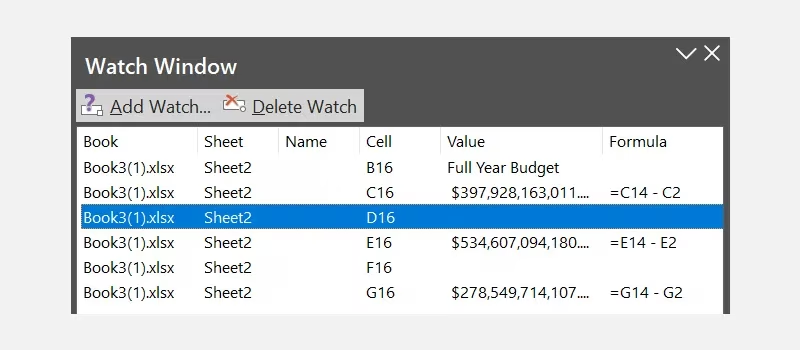
Once activated, your Watch Window becomes a persistent dashboard showing:
-
📛 Workbook & sheet names
-
🎯 Cell addresses
-
🔢 Current values & formulas
-
🔄 Real-time updates
Advanced Espionage Tactics
Cross-Sheet Reconnaissance
Tracking EBITDA on Sheet 1 while tweasing inventory metrics on Sheet 3? The Watch Window handles this like a squirrel navigating power lines—gracefully and without electrocution.
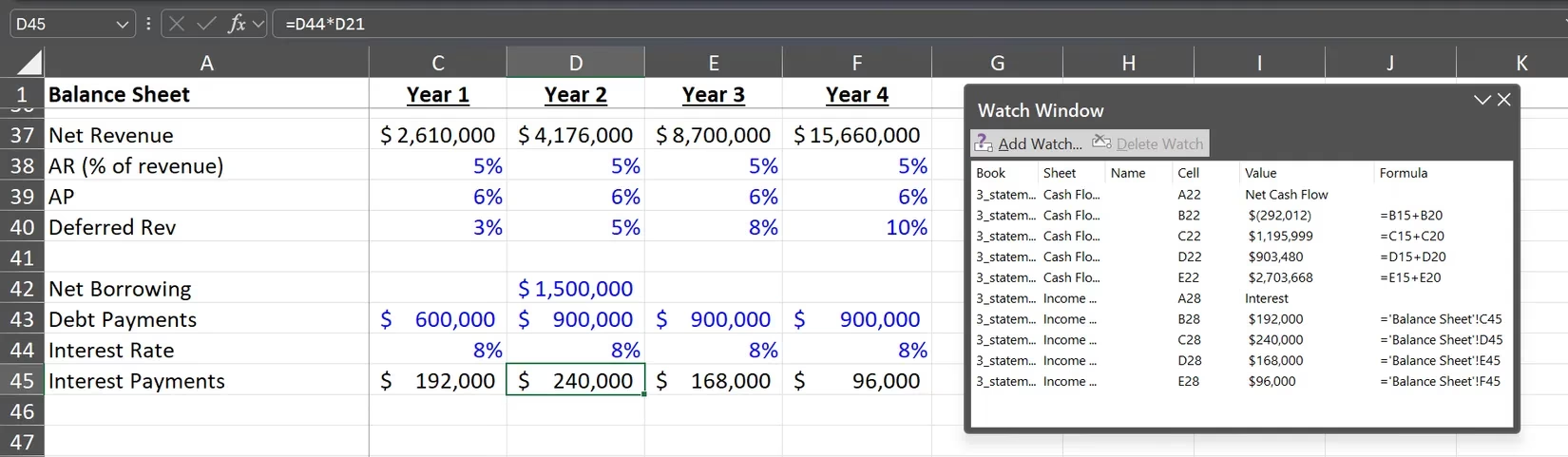
Cross-Workbook Surveillance
Even when juggling valuation models in separate files, your Watch Window sticks around like a loyal shadow. Need to compare EBITDA between Financial_Model_Q4.xlsx and Acquisition_Analysis.xlsx? Just add both cells—it’s like installing security cameras in two buildings simultaneously.
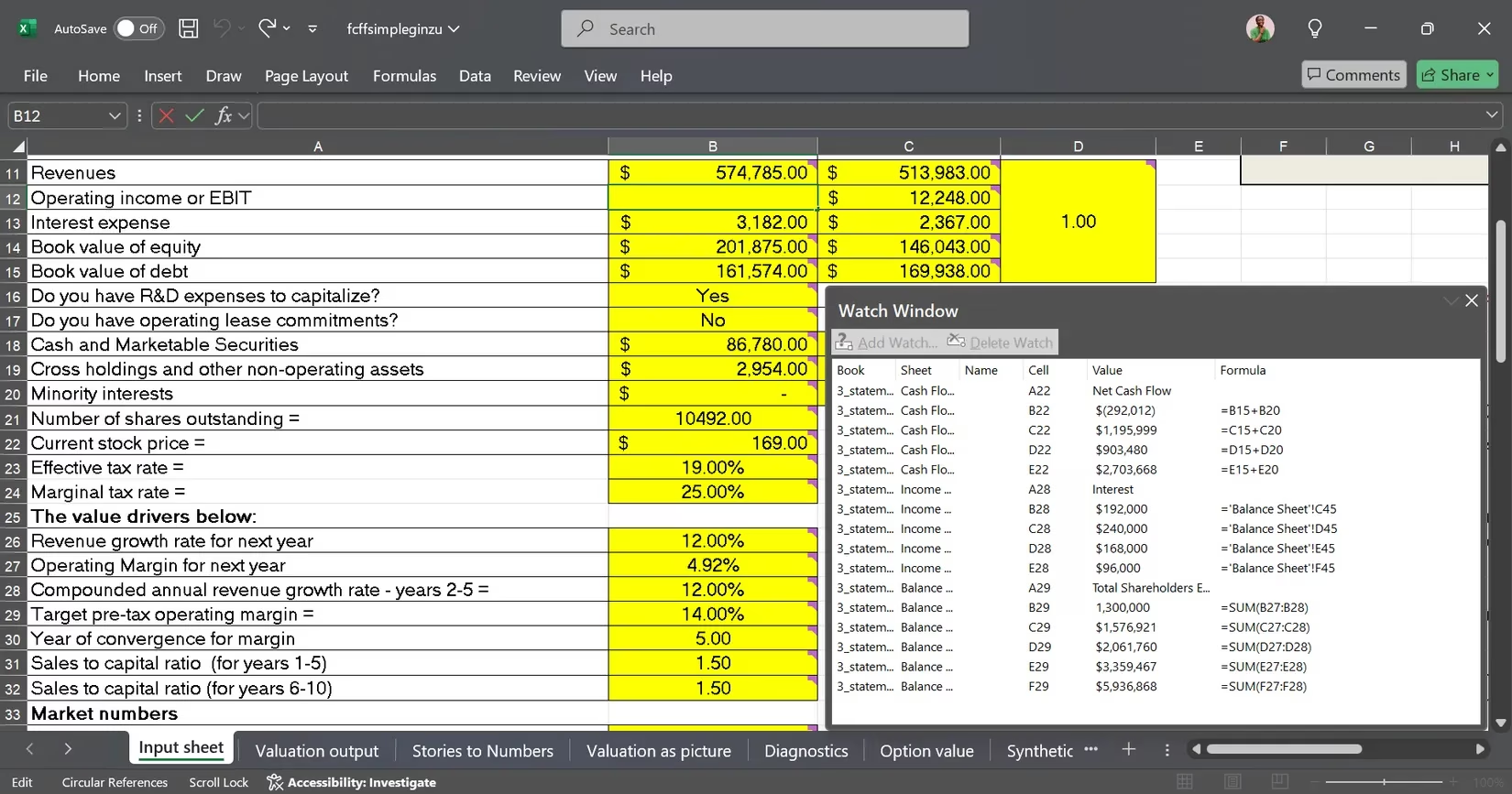
Custom Docking Stations
Reposition the floating pane anywhere:
| Dock Position | Best For |
|---|---|
| ⬇️ Bottom | Wide-screen monitors |
| ➡️ Right | Vertical cell tracking |
| ⬆️ Top | Formula-heavy sheets |
| ⬅️ Left | Rarely—unless you're a masochist |
Maintenance & Troubleshooting
Removing Watches
Click Delete Watch to remove cells faster than Houdini escaping a straitjacket. No more tracking obsolete metrics!
Pro Tips for 2025
-
🔥 Hotkey Hero: Assign Alt+M+W to open Watch Window instantly
-
🎨 Color Code: Match watched cells with highlighted tabs for visual coherence
-
🚫 Avoid Overload: Limit to 5-7 critical cells—this isn’t Times Square’s billboard district
Why This Beats 2025's "AI Assistants"
While flashy AI tools promise automated insights, they often overcomplicate simple tracking. The Watch Window remains elegantly mechanical—like comparing a Swiss watch to a chatty robot butler. It delivers three irreplaceable benefits:
-
⏱️ Zero latency updates (unlike cloud-based tools)
-
🛡️ No formula disruption (unlike volatile LAMBDA functions)
-
💾 Works offline (crucial during flight-induced productivity sprints)
For financial modelers, this feature transforms spreadsheets from static documents into living organisms. Every adjustment to debt ratios or inventory turnover becomes observable in real-time across dependent sheets—like seeing ripples spread across a pond before tossing the next stone. So next time you're lost in workbook wilderness, remember: Your surveillance butler awaits in the Formulas tab, ready to turn cell-monitoring chaos into orchestrated harmony.
Comments