I still remember the night before our first major tournament. Our team chat was a mess of overlapping practice times, missed calls, and last-minute reschedules. Sound familiar? If you’ve ever tried to coordinate five gamers across three time zones, you know that a shared calendar isn’t a luxury—it’s survival. That’s when I stumbled onto TimeTree, and it changed the way we run our entire operation.

Why a Shared Calendar Became Our Secret Weapon
As a professional gamer, my “office” is a Discord server and a practice room. But the same scheduling nightmares that plague corporate teams hit us just as hard. Double-booked scrims, forgotten sponsor calls, and that one teammate who always asks, “Wait, what time is practice?”—these problems cost us matches. TimeTree solved them by giving us a single, shared calendar that everyone can see and edit. No more back-and-forth. No more excuses.
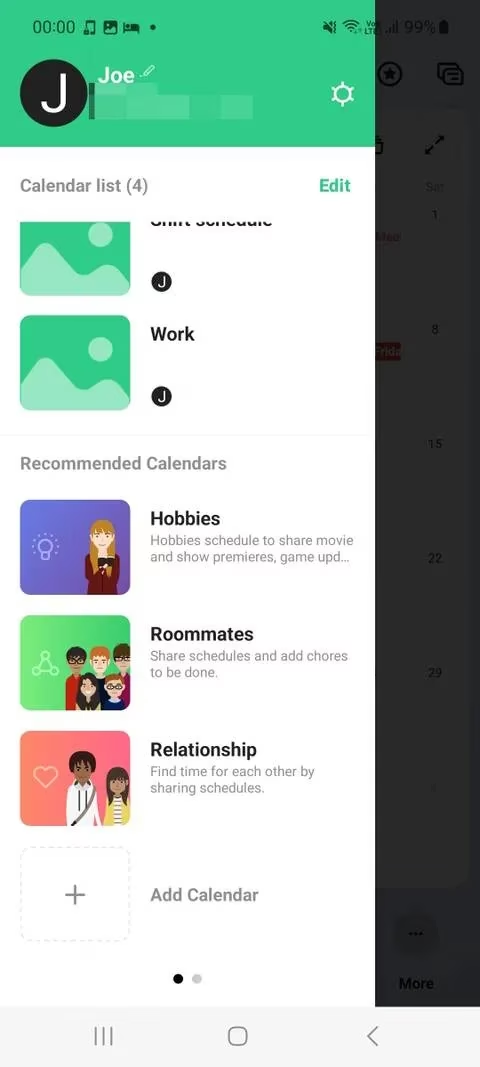
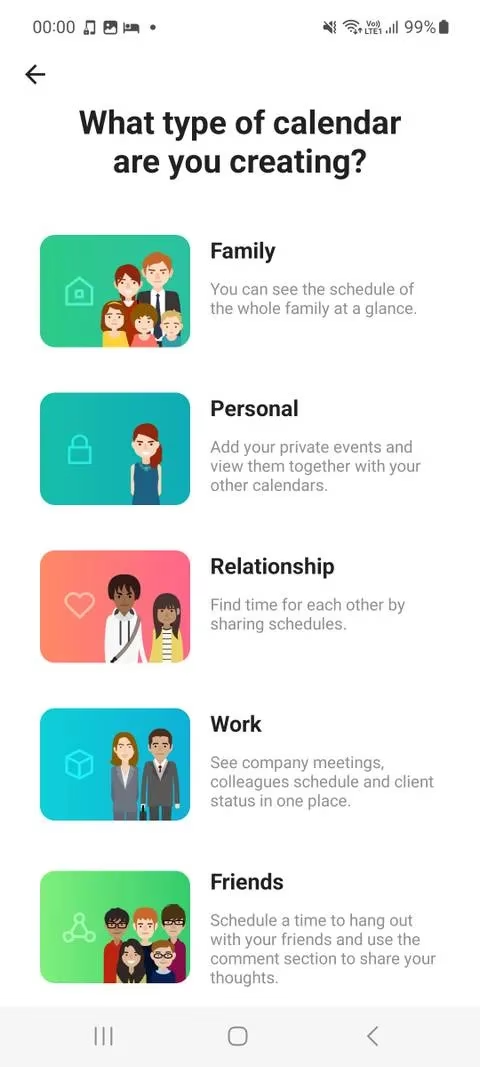
Creating a shared calendar was the first step. I tapped the menu button, scrolled to Add Calendar, and selected Work. Giving it a name like “Team Apex Practice” and uploading our logo made it feel official. Then I invited everyone via email, Messenger, and WhatsApp—or just generated a URL and dropped it in our team chat. Within minutes, we had a living schedule that updated in real time.
Labels: The Difference Between Chaos and Clarity
Have you ever stared at a calendar that looks like a rainbow exploded? That was our old Google Calendar. TimeTree’s label management is a game-changer. I created custom labels for Scrims, Tournament Matches, Sponsor Meetings, and Days Off. Each gets its own color. Now, one glance tells me whether I’m looking at a practice block or a media obligation. I even made a “Do Not Disturb” label for days when we need to grind solo queue without interruptions.
Adding Events Without Losing Your Mind
Adding an event is ridiculously quick. Tap the Create button, set the time, and you’re done. But the real magic is in the details. For weekly scrims, I use the repeat function—no more recreating the same event five times. The Location tool, powered by Google Maps, is perfect for LAN events. I can drop the venue address, and everyone gets a route. For online tournaments, I paste the Zoom or Discord link into the URL field. It’s all there, attached to the event, so nobody has to dig through chat history.
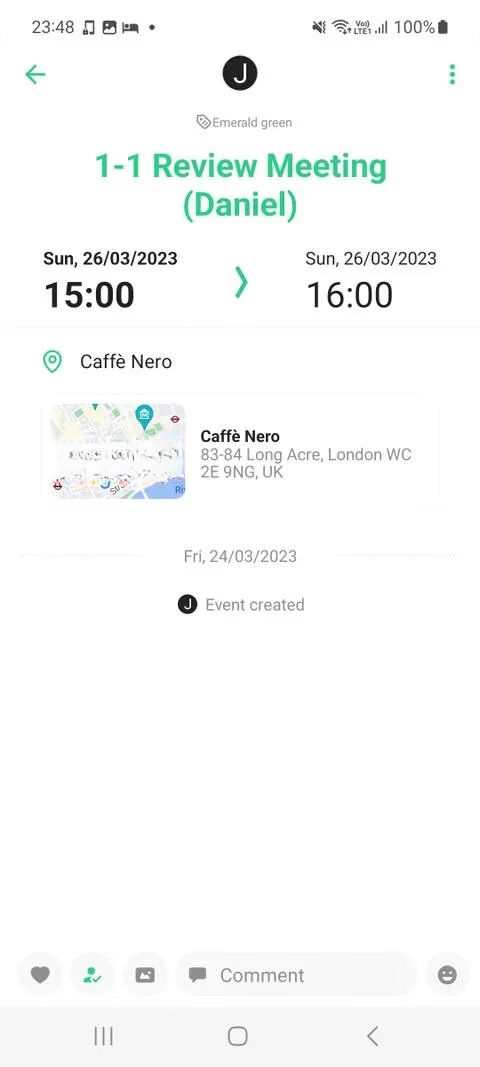
What about those last-minute changes? The Copy to multiple dates option saved us during a bootcamp week. I set up one practice block and copied it across five days in seconds. And if I want to keep a personal reminder, I copy the event to my own calendar. No more missed sponsor calls because I was buried in the team schedule.
Memos and To-Do Lists: Because Your Brain Has Limits
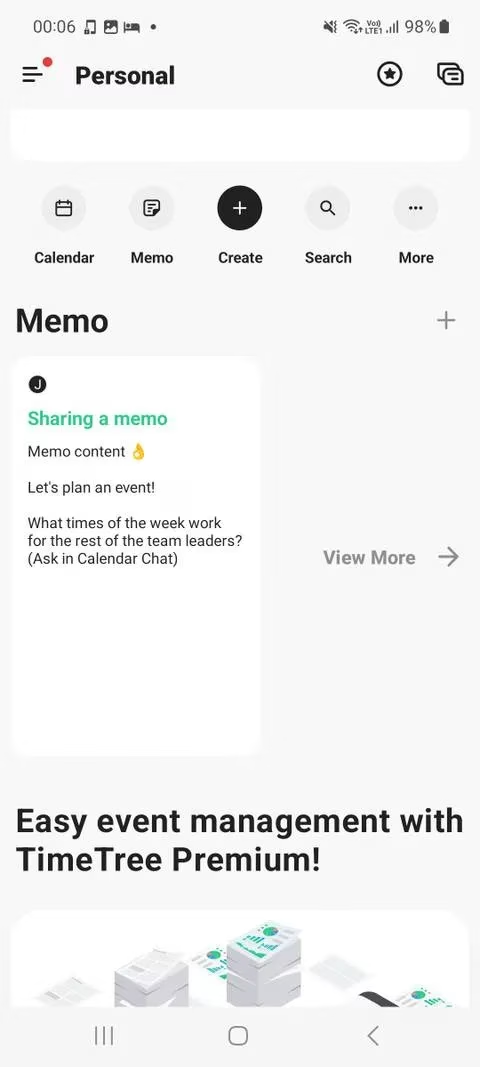
I used to juggle three apps: one for scheduling, one for notes, one for tasks. TimeTree combined them. The Memo feature is separate from the calendar, so it doesn’t clutter the view. I use it to jot down draft strategies, list equipment we need for LAN events, or write down questions for our coach. Each memo can be a text note or a checklist—perfect for packing lists. And the labels carry over, so I can color-code memos by category.
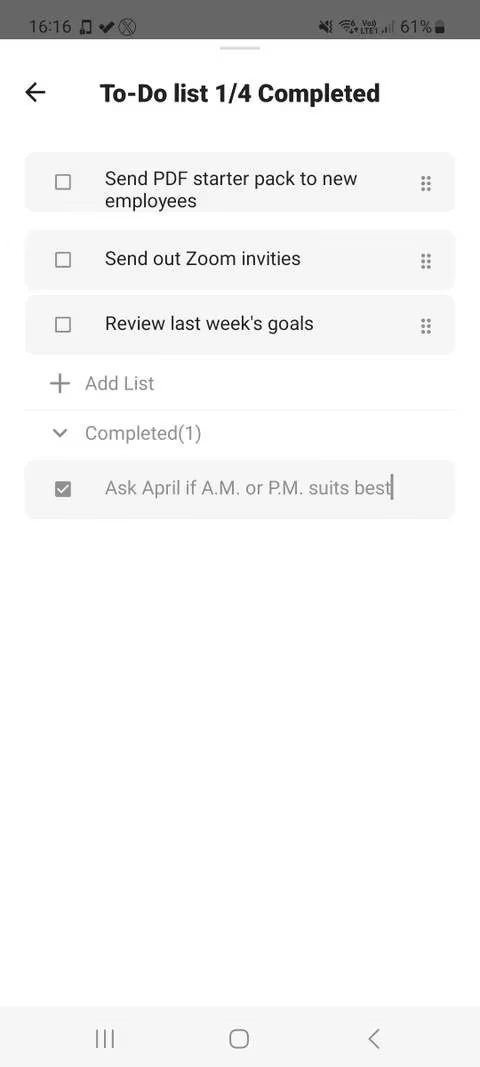
Then there’s the To-Do List attached to events. Before a match, I create an event and add tasks like “Send lobby code to team,” “Check headset battery,” and “Review opponent VOD.” Dragging tasks to reorder them is oddly satisfying, and swiping to delete keeps the list clean. It’s a tiny feature that prevents big mistakes.
Calendar Chat: The End of Endless Emails
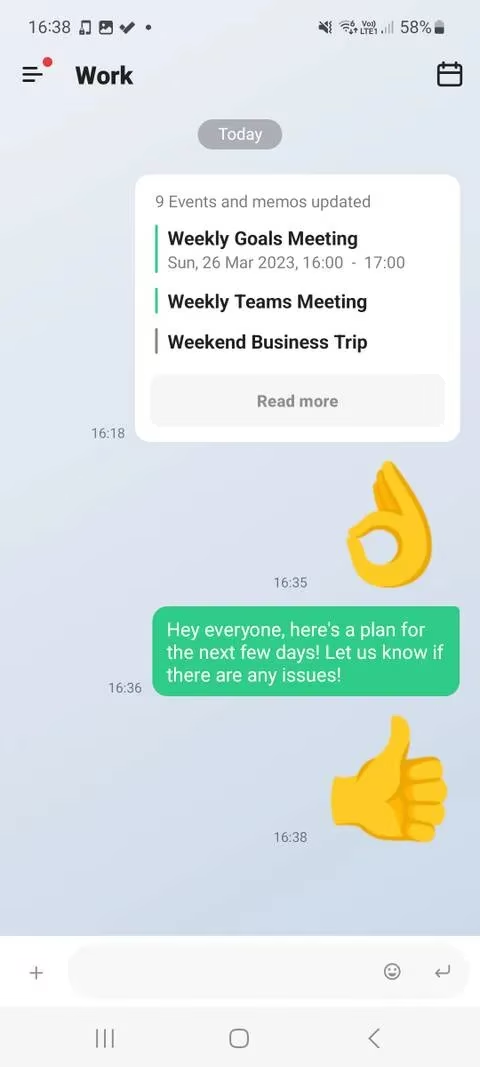
I’ll be honest—I didn’t expect to use Calendar Chat as much as I do. But it’s become our team’s command center. Need to ask if someone can swap a practice slot? Send a message in the calendar chat. Want to share a screenshot of the bracket? Upload it. Reactions work just like WhatsApp, so a quick 👍 or 🔥 confirms attendance without a full reply. Event updates appear automatically in the chat, so nobody misses a change. It’s like having a group chat that’s actually tied to the schedule, not floating somewhere else.
The Bottom Line for Gamers and Teams
So, is a shared calendar really worth it for a gaming team? Absolutely. TimeTree removed the stress of double-bookings, forgotten meetings, and “I didn’t see that message” excuses. It gave us a single source of truth that works across devices and time zones. Whether you’re managing a five-person squad or a full esports organization, the tools are there: shared calendars, labels, memos, to-dos, and integrated chat. And the best part? It’s free, with a subscription option if you need more.
If you’re still scheduling practice through DMs and hoping everyone remembers, ask yourself: how many matches have you lost because of a scheduling mistake? Give TimeTree a shot. Your team—and your sanity—will thank you.
Comments