In 2026, I still see many teams and solo creators drowning in sticky notes, scattered messages, and last‑minute panic. I used to be one of them—until I built a project planning system inside Notion that finally gave me clarity. Notion has evolved a lot over the last few years; it now weaves in AI‑generated summaries, smarter linked databases, and even timeline views that feel almost automatic. Yet the foundation remains the same: a well‑structured project plan turns chaos into calm. Today I’m walking you through my personal blueprint for setting up a project plan in Notion, step by step. If you follow along, you’ll have a workspace that keeps you confident from kick‑off to celebration.
🏠 Step 1: Create a dedicated project home
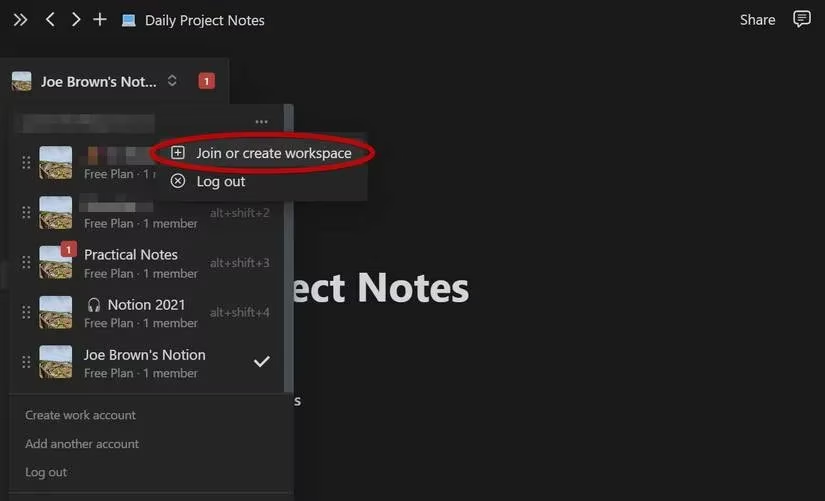
Before anything else, I give every project its own digital home. A Notion workspace is like a giant, organized filing cabinet. In the sidebar, I click + New workspace (or use the keyboard shortcut Ctrl + \ to toggle the sidebar if it’s hidden). I name it after the project—something clear like “Product Launch 2026” or “Community Event.” When Notion offers default templates, I remove them. I want a blank canvas. This keeps the environment focused and free of clutter right from the start.
📓 Step 2: Build a daily notes hub
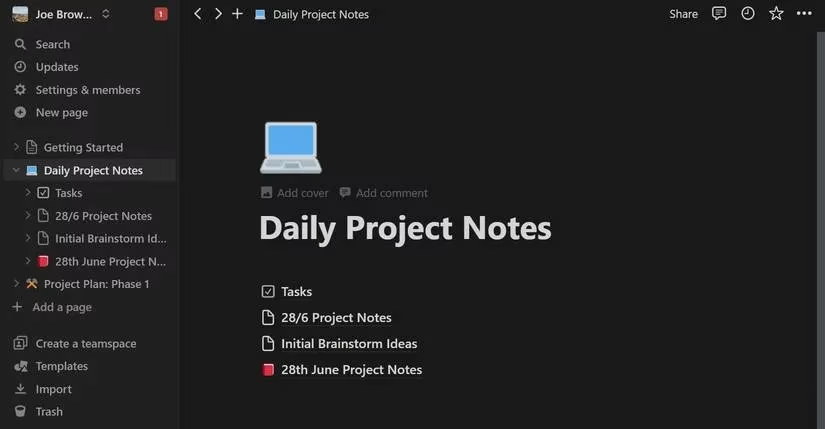
Idea capture is messy, and that’s exactly why I need a dedicated space for it. Inside my new workspace, I hit Ctrl + N to add a fresh page and name it Daily Notes. This becomes my scratchpad. Whenever a thought strikes—a design tweak, a stakeholder reminder, a risk I just spotted—I open this page and type /page to create a sub‑page. The sub‑page gets today’s date or a quick label. Over time, I have a chronological, searchable log of my project brain. On hectic days, this folder is my lifeline.
⚙️ Step 3: Build a dynamic task database
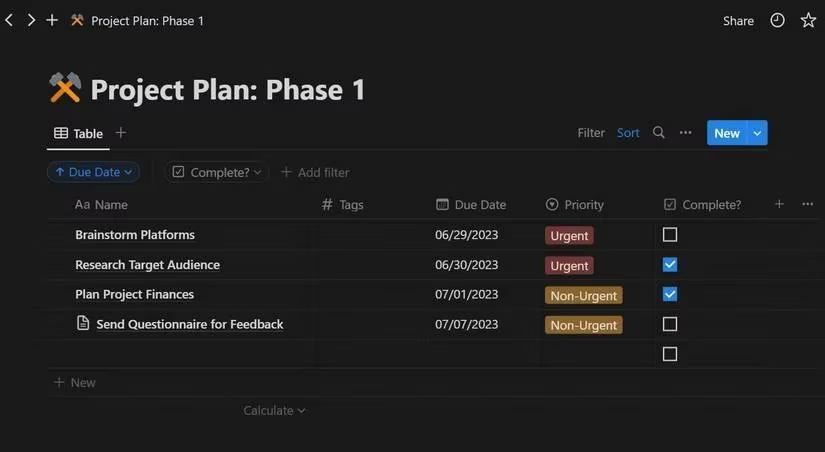
A project plan without a solid task backbone is just a wish list. I rely on a Notion database to see everything at a glance. On any page, I type /database and choose Table – Inline. The database acts as my project control center. By default, Notion gives me a Name property and a Tags property. I immediately add more. Here’s the typical setup I use in 2026:
| Property type | Purpose | Example values |
|---|---|---|
| Date | Deadline or milestone | “2026-04-15” |
| Select (Status) | Workflow stage | “To Do”, “In Progress”, “Done” |
| Select (Priority) | Urgency | “🔴 High”, “🟡 Medium”, “🟢 Low” |
| Person | Assignee | Team member names |
| Checkbox | Quick completion | Checked / Unchecked |
To add a property, I click the + icon on the top row of the database. I often resize columns by dragging the vertical borders—simple but satisfying. Each project task gets a title in the Name column, and I fill in the rest. Later, if I want to dive deep, I hover over a task title, click Open, and a brand‑new page appears just for that task. There I can embed mockups, write detailed briefs, or even attach a Loom video walkthrough (a feature Notion has supported since 2024).
🔍 Step 4: Filter, sort, and see only what matters
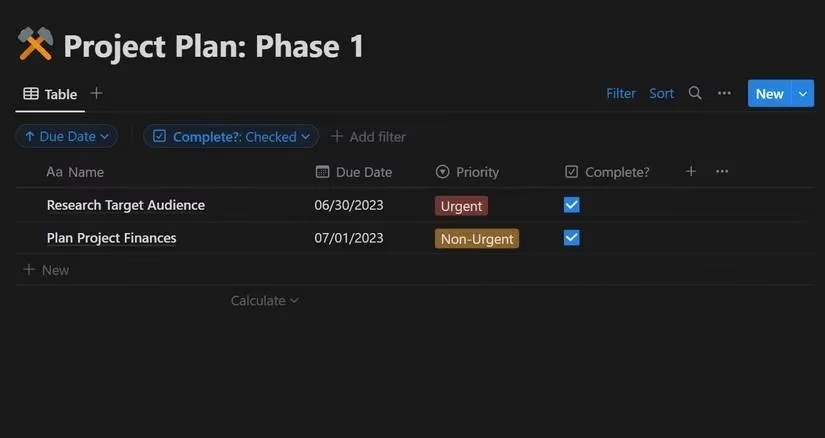
A long, unfiltered list of 80 tasks is overwhelming. That’s why I apply views with surgical precision. In my database, I click Filter and add a rule: Status is not Done. Now only active work remains. I then hit Sort, select the Date property, and choose Ascending. The most urgent tasks rush to the top. When I need a different perspective, I switch the view to Board (grouped by Status) or Calendar—both are native options. This flexibility lets me plan without fighting the interface.
🔔 Step 5: Never miss a deadline with smart reminders
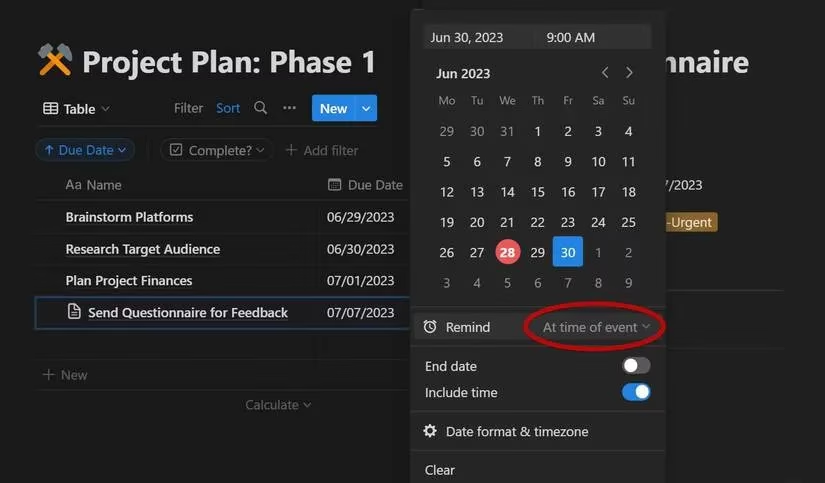
Notion’s reminder system has become more intuitive. In any task’s date property, I toggle Include time and then select Remind at time of event. But I often go one step further: from the dropdown, I choose 1 day before or 1 hour before. The text turns blue—a small visual cue that a reminder is locked in. When the time comes, I get a notification on desktop and mobile. No more excuses, no more forgotten handoffs.
📱 Step 6: Stay in sync wherever I go
Project work doesn’t stop when I leave my desk. The Notion app for Android and iOS syncs everything in real time. I can check my daily notes during a commute, update a task status while waiting for coffee, or approve a milestone from the couch. The mobile experience in 2026 is polished—offline mode even lets me capture new ideas when the signal drops.
💡 Final thoughts
Planning a project used to feel like chasing loose threads. With this Notion system, I’ve turned those threads into a tight‑knit fabric. A dedicated workspace, a daily notes hub, a dynamic task database, and well‑tuned reminders work together to keep me calm and focused. You don’t need to be a productivity expert; you just need to start. Open Notion, create that first page, and build your project plan one block at a time. Your future self will thank you—and your deadlines will too.
Comments