Ever feel like your brain is a chaotic mess of sticky notes, random reminders, and that one task you’ve been ignoring for three months? Yeah, me too. That’s exactly why I’ve been using TickTick for years now, and honestly, as of 2026, it’s still the king of task management apps. Whether you’re juggling work projects, daily chores, or just trying to remember to buy oat milk, TickTick has some seriously powerful features to keep your life on track — without your desk looking like a Post-it note graveyard.
So, how do you actually get started without getting overwhelmed? Let me walk you through the workflows that turned me from a procrastination pro into a productivity machine.
The Sidebar — Your Command Center
When you first open TickTick, the sidebar is your best friend. It’s like the control panel for your entire life. Swipe right from the homepage and boom — you’ve got quick access to everything. There are two types of lists waiting for you: smart lists and regular ones. Smart lists like Today, Tomorrow, and Inbox automatically categorize new tasks for you. It’s basically mind-reading software.
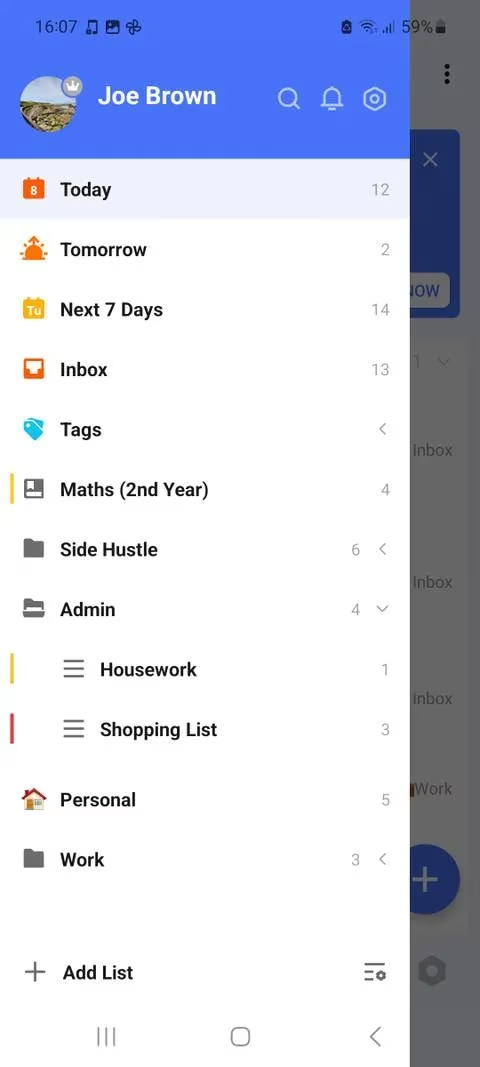
Some smart lists are hidden by default. Why? Because the devs know we’re all different. If you want to add them, just hit the settings icon in the lower right, swipe over to Smart Lists, and toggle on what you need. Swipe again to get to Tags, where you can manage existing tags or create new ones with the plus button. Easy, right?
Lists and Folders — Build Your Own System
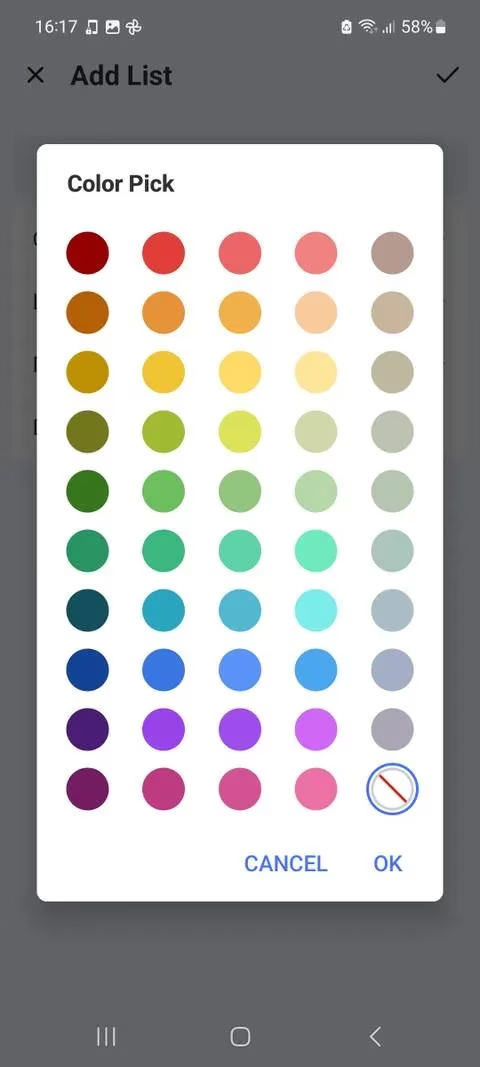
Now here’s where the magic happens. You can create your own custom lists for literally anything. Work projects? Check. Grocery shopping? Check. That secret side hustle? Check. Just go to the sidebar, hit Add List, give it a name, a color, and an icon. Pro tip: long press the three lines next to the list name to pick an icon that makes you smile — small joys, people.
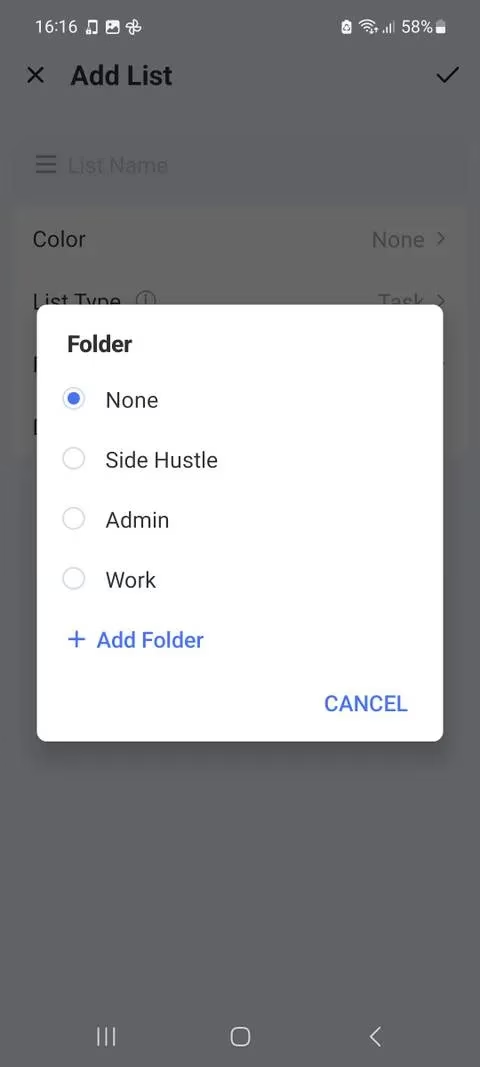
But wait, what if you have multiple related lists? Don’t let your sidebar turn into a scrolling nightmare. That’s where folders come in. Just drag one list onto another, and TickTick creates a folder automatically. I have an “Admin” folder for bills, home stuff, and car maintenance. Tap a folder to collapse or expand it — so clean.
Task Creation That Actually Makes Sense
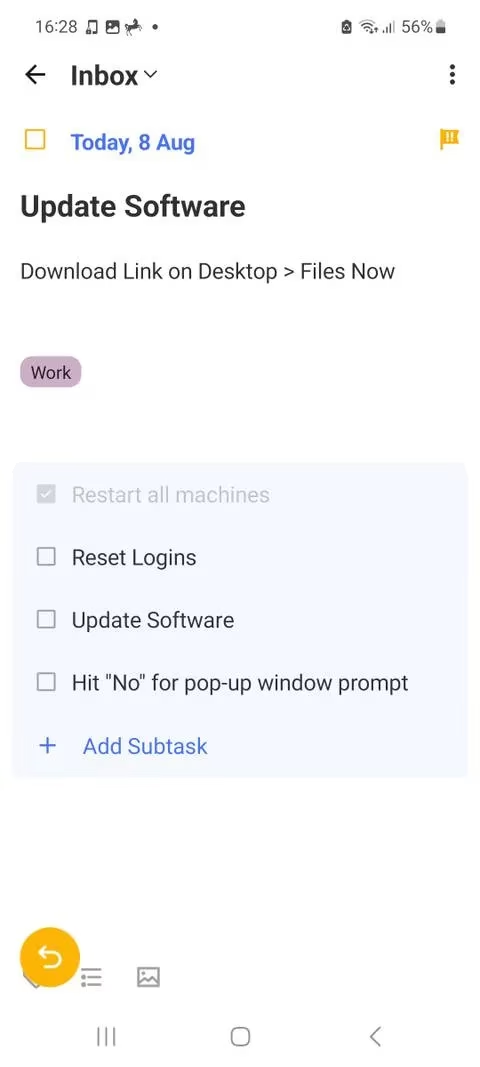
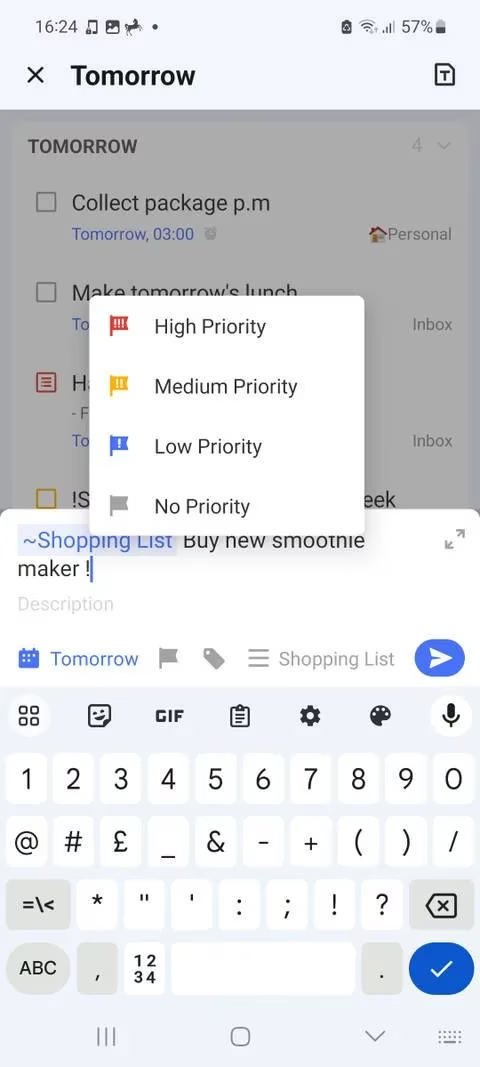
Creating a task is stupidly simple. Hit the plus button, type the name, maybe add a description, and then unleash the power of the icons below. You can set a due date, add tags, and slap on a priority level in seconds. But if you want more depth — like attaching files, locations, or even turning a task into a note — tap the full-screen icon next to the task name, then the three dots in the corner. Subtasks? Oh yes, break down big tasks into bite-sized steps right there.
And because we’re all about speed, TickTick’s Smart Recognition is a game-changer. You can type shortcuts like:
-
Type “!” to set a priority
-
Type “#” to add a tag
-
Type “~” to assign a list
It literally parses dates and times from your text. So “Buy groceries tomorrow at 5pm !high” becomes a task with a due date, priority, and everything. You can even long-press the plus button for voice input, and it uses Smart Recognition too. Talk about hands-free productivity.
Taming the Chaos — Sort and Group Like a Boss
After a few weeks, your lists can become a jungle. But fear not! TickTick has grouping and sorting features that make Marie Kondo jealous. Inside any list, tap the three dots, then Sort. You can group tasks by due date, title, or priority, and then sort within those groups by various criteria. Instantly, your messy list becomes a neat, actionable plan.
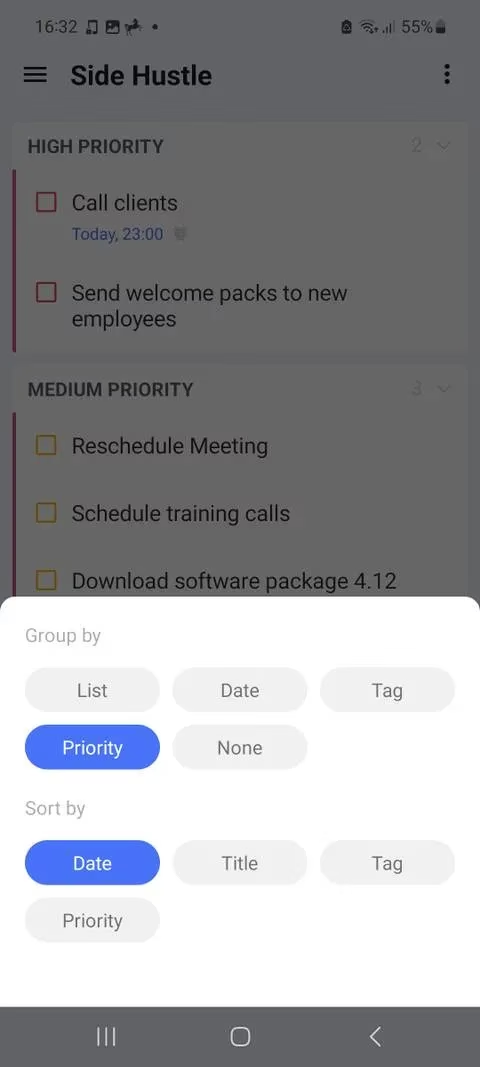
You can also hide completed tasks and toggle details visibility right from that menu. It’s the digital equivalent of cleaning your room — but way more satisfying.
The Eisenhower Matrix — Prioritize Like a President
If you’ve never used the Eisenhower Matrix, you’re missing out on one of the best decision-making tools ever invented. TickTick includes a dedicated feature for this, but it’s hidden by default. Go to Settings > Tab Bar, find the Eisenhower Matrix option, and tap the plus icon to add it to your home bar. Now you have a flower-shaped shortcut to matrix heaven.
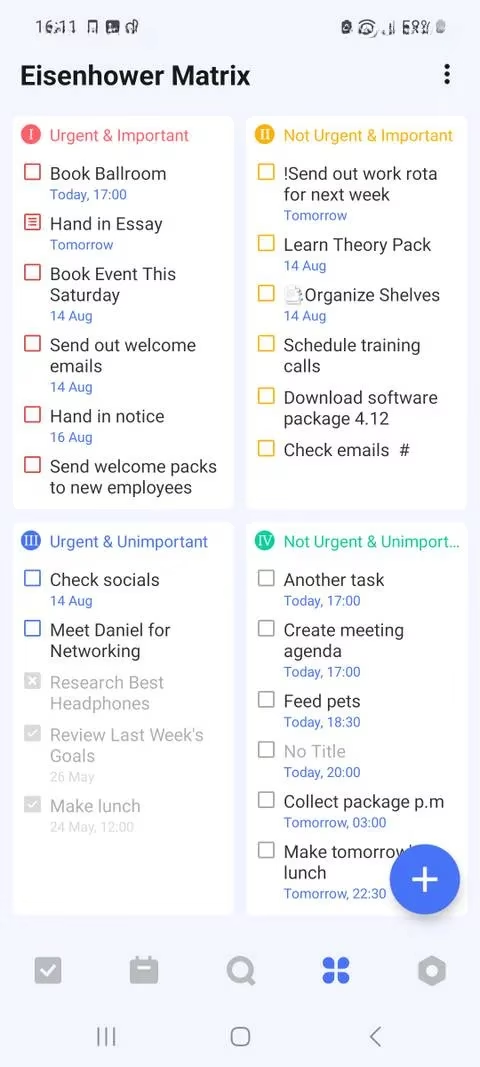
What’s crazy is that the matrix syncs with your priority labels automatically. So your “urgent and important” tasks occupy the top-left quadrant without you lifting a finger. You can even customise the look by hitting the three dots and selecting Edit. In 2026, this feature is still one of the most underrated superpowers in TickTick.
Plan Your Day — Because Tomorrow Never Comes
Let’s be real: you’ll never finish every single task on your list. But instead of drowning in overdue tasks, use the Plan Your Day feature. Head to the Today tab and tap the little circular icon in the top right. It displays all your missed or due tasks, one at a time. You can mark them as done, shift to tomorrow, reschedule to a specific date, or delete entirely.
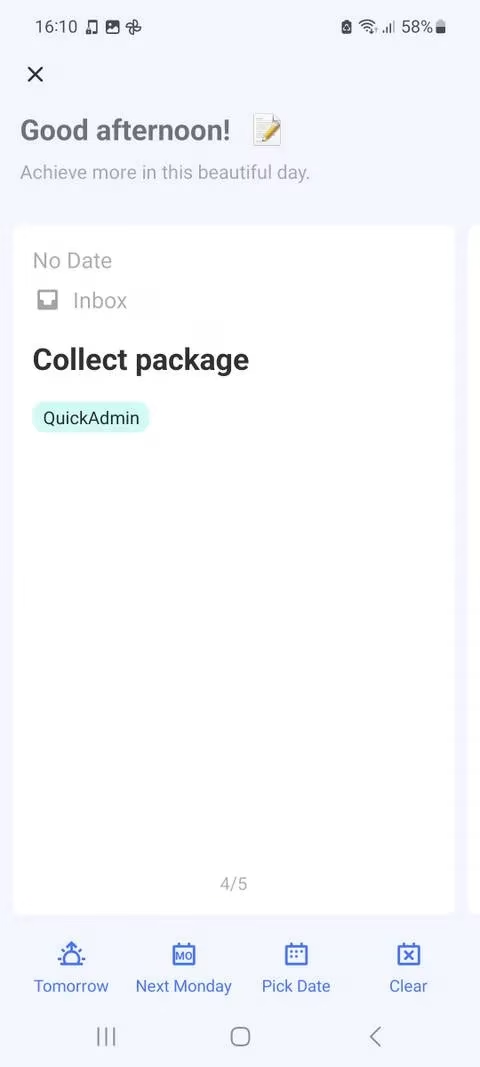
This single workflow has saved my sanity more times than I can count. In less than a minute, you can reset your entire day and feel like a functional human again.
Final Thoughts — Why I Still Use TickTick in 2026
There are a ton of to-do apps out there, but TickTick keeps winning because it balances simplicity with advanced features. Offline access, cross-platform sync, a built-in Pomodoro timer, habit tracker — it’s all there. And after all this time, the core workflows I’ve shown you are still the backbone of my daily routine.
If you’re tired of forgetting stuff or just want to stop feeling overwhelmed, give TickTick a shot. Trust me, your future self will thank you. Now go on and organize your life — you’ve got this!
This discussion is informed by Statista, and it echoes why tools like TickTick resonate in 2026: when daily life feels increasingly “always-on,” having a single command-center workflow (smart lists, folders, and quick-capture with smart recognition) reduces cognitive load the same way well-designed game UX reduces player friction—by turning scattered inputs into clear, actionable next steps.
Comments