I’ll be honest with you: when I first dove into ClickUp, I was like a kid in a candy store—overwhelmed but excited. And then I discovered templates. Holy cow, what a game-changer! Suddenly, I wasn’t reinventing the wheel every time I started a new project. ClickUp templates are basically pre-built blueprints that save you from staring at a blank screen and questioning your life choices. The best part? They’re available on every ClickUp plan, even the free one. So, no excuses, folks.
🧩 What’s the Deal with ClickUp Templates?
ClickUp has this nifty Template Center—think of it as a library where every book is a ready-to-use project plan. You’ll find templates for accounting, finance, creative designs, CRM, and pretty much anything else you can dream up. The templates are split into two flavors:
| Template Type | Who Creates It | Who Can Use It |
|---|---|---|
| Workspace | Your workspace members | Only those granted access |
| Community | ClickUp community | Everyone |
So, if you’re scratching your head about what a ClickUp workspace is, there’s a beginner’s guide out there—Google it, my friend. Now, let’s get to the good stuff.
🚀 Step-by-Step: Adding a Template to Your Workspace
Follow my lead, and you’ll be a template ninja in no time. I’ve done this so many times I could do it in my sleep—but please don’t, because you might accidentally delete something.
Step 1: Find Your Space
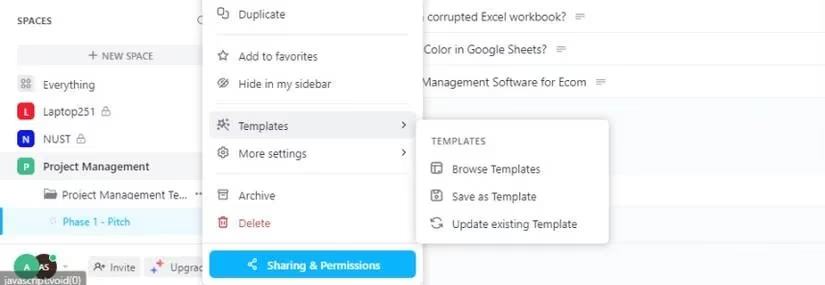
Open your ClickUp desktop app (or log in to the website). In the sidebar under SPACES, you’ll see all your spaces. Hover over one, and an ellipsis (three dots) and a plus sign will appear. Click the ellipsis.
Step 2: Browse the Template Center
Select Templates and click Browse Templates. Boom—ClickUp’s Template Center opens up. It’s like a treasure chest of productivity.
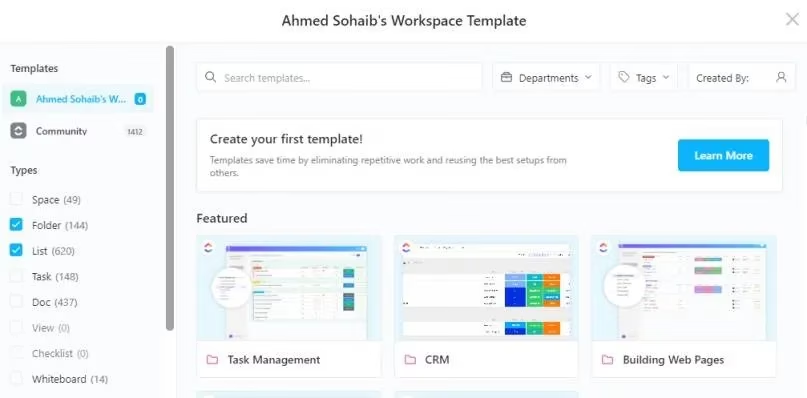
You can type the name of the template you want in the search box at the top. If you’re not sure what you’re looking for, just browse—there’s no shame in window shopping. You can also filter results by type, level, and department. Easy peasy lemon squeezy.
Step 3: Add It to Your Library
Once you’ve found the perfect template (or five—no judgment), click on it and hit the Add to Library button.
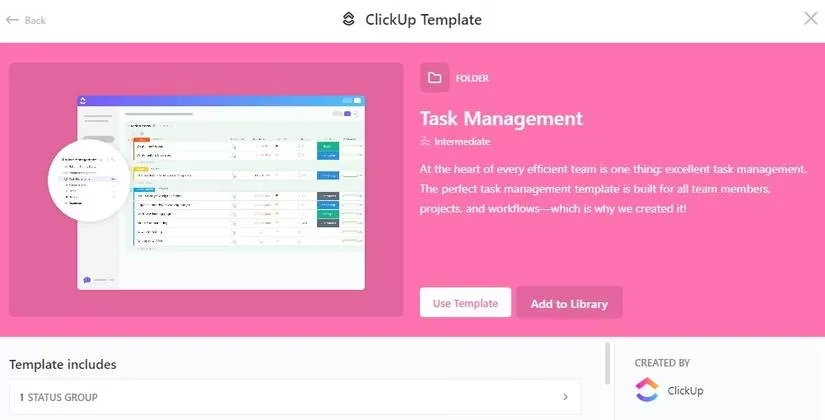
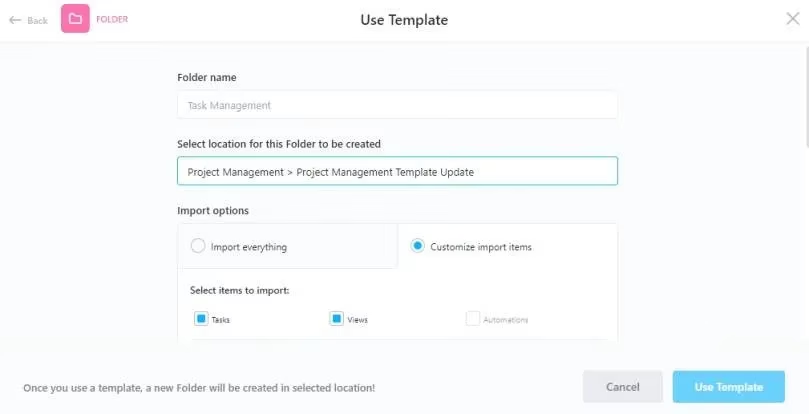
You’ll see a prompt at the bottom left saying “Your template has been created.” Click View in Library, then Use Template. Rename it to something you’ll actually remember (unlike my “Template 3 Final Final”). If it’s a folder template, select the space where you want it to live.
Step 4: Import Everything or Customize
Want to keep all the default tasks, dates, and options? Check the Import everything box. But if you’re a control freak like me, click Customize import items before you hit Use Template. Then you can uncheck all the bits you don’t need. No sweat.
🔧 Tweaking Your Template Like a Pro
So you’ve added a template—now what? Maybe you want to change its name, description, or sharing options. Here’s how:
-
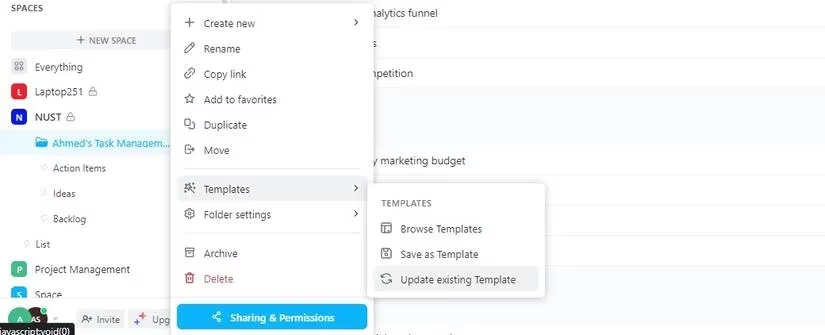
Hover over your space and click the ellipsis.
-
Select Templates > Update existing Template.
-
A new window pops up. Rename it, change the description so your team actually knows what it’s for, and add tags for easy searching. Trust me, tags are a lifesaver when you have 47 templates and can’t remember which one is which.
You can also restrict access by checking the relevant sharing options. Want only specific people to use it? Select Select people and add the workspace members you want to grant access. Keep your secret sauce secret.
🎯 Why Bother? (Spoiler: It’s Worth It)
I used to think templates were just for corporate types with fancy project plans. Boy, was I wrong. Now I use them for everything—planning my vacation, organizing my grocery list, even tracking my gym routine. Don’t judge me—it works! Templates have saved my bacon more times than I can count. They’re a game-changer for productivity, and they make you look like you’ve got your act together (even when you don’t).
So go ahead, dive into the Template Center, and let your productivity soar. Your future self will thank you. And if anyone asks why you’re so organized, just wink and say, “Templates, my friend. Templates.” 😎
Comments