In 2026, Asana remains a central command post for teams that manage complex projects across distributed time zones. Its time-tracking layer turns vague effort into measurable data, helping project managers compare estimates with actual work. Time, for a busy project manager, can behave like a handful of wet sand: the tighter the grip, the faster it slips away. Asana's time-tracking toolkit acts as a lighthouse logbook for a fleet of tasks, recording not only hours but also estimates, contributors, and subtask rollups. The platform's features are practical rather than decorative, and they support daily decisions about capacity, deadlines, and workload balance. The guide below examines subtask rollups, CSV import and export, timeline views for subtasks, time contributor reporting, and reusable templates.

Subtask Rollups: Seeing the Forest and the Trees
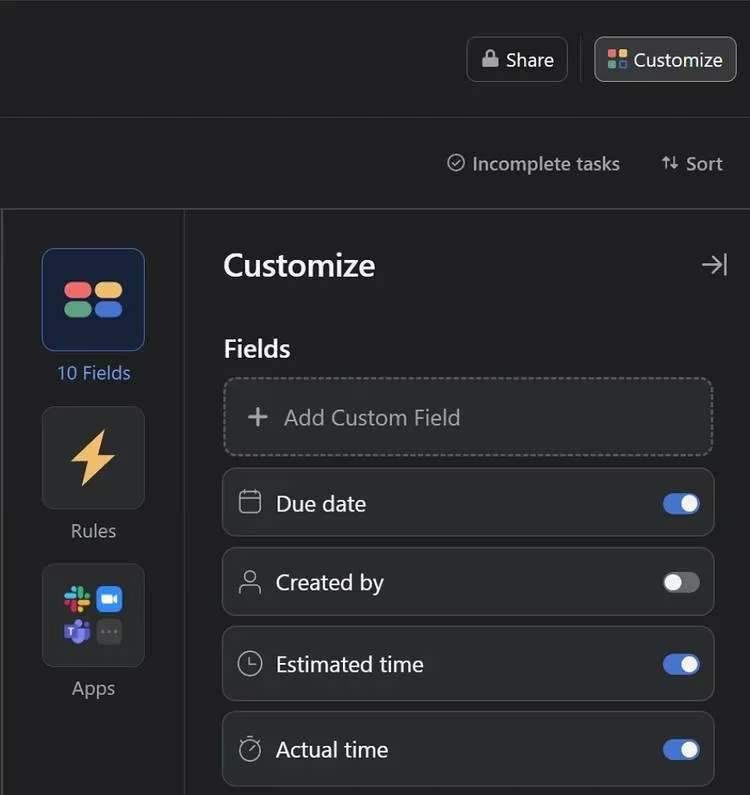
Asana's Subtask Rollup feature lets teams see the total time estimate and total time consumption for all subtasks under a parent task. This is a coral reef of nested work: each small polyp contributes to the visible structure, and ignoring any one of them can distort the whole. By surfacing those totals, teams can identify idle time and remove inefficiencies before they harden into habits. To enable this feature:
-
Click Customize at the top right corner of the workspace.
-
Enable Time Remaining from the Field section of the popup list.
CSV Import and Export: Moving Time Data Without Friction
Asana supports CSV-based import and export, which is useful for teams onboarding from another project management tool or for analysts who prefer spreadsheet-based reviews. In 2026, this interoperability remains essential for hybrid workflows that mix Asana with business intelligence tools. For import:
-
Go to Asana Home and click the + icon, then choose Project.
-
Click Import Spreadsheet.
-
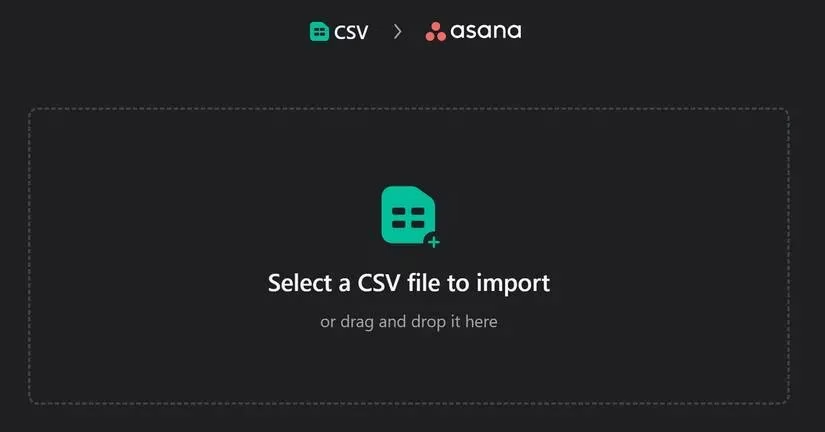
Upload or drag and drop a CSV file, or select the tool from which data should be imported.
-
Alternatively, import into an existing project from the Project dropdown menu located between the project name and the Favorite icon.
To export a CSV file from Asana:
-
Open the project to export.
-
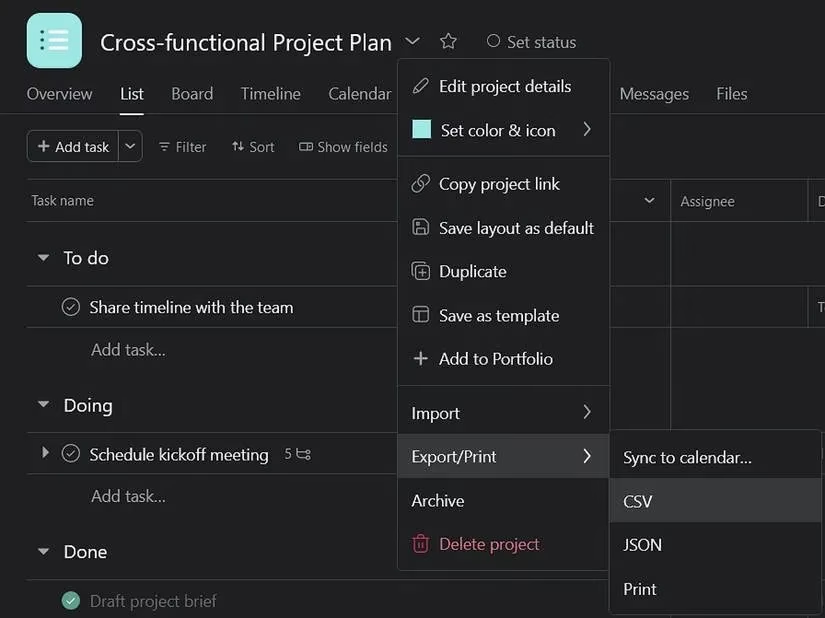
Click the dropdown icon between the project name and the Favorite icon.
-
Click Export > CSV.
Timeline View for Subtasks: A Weather Vane for Deadlines
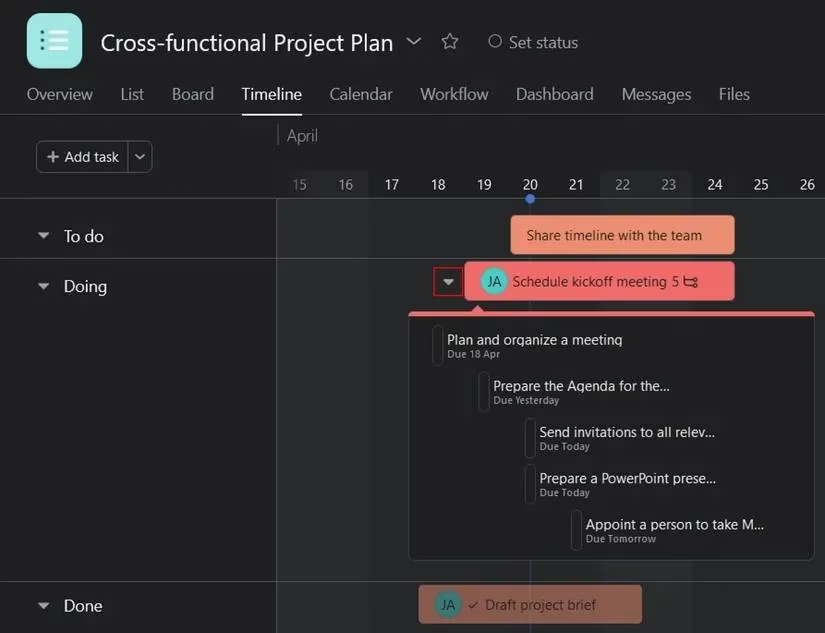
When multiple subtasks sit under the same parent task, the Timeline view helps teams stay ahead of deadlines. Subtasks on the timeline function like a weather vane for project pressure: they show which direction the work is turning before the storm arrives. To view subtasks on a timeline:
-
Click the desired project under the My Workspace section on the left menu bar.
-
Switch to the time view by clicking Timeline on the top navigation bar.
-
Click the arrow to the left side of the task on the screen.
Only tasks with subtasks display an arrow on the left side of their task box in the timeline view. This small visual cue prevents teams from assuming that a parent task is a single monolithic block of work.
Time Contributor Reporting: Who Recorded What?
The time contributor reporting feature shows how much actual time has been recorded by teammates in Asana. It is useful for workload balancing, client billing preparation, and retrospective accuracy checks. To build a time contributor report:
-
Go to the Reporting page.
-
Create a new dashboard or choose an existing one.
-
Click + Add chart and select a chart type.
-
Under the Y-axis section, click Time entry > Actual time.
-
Under the X-axis section, choose Time added by.
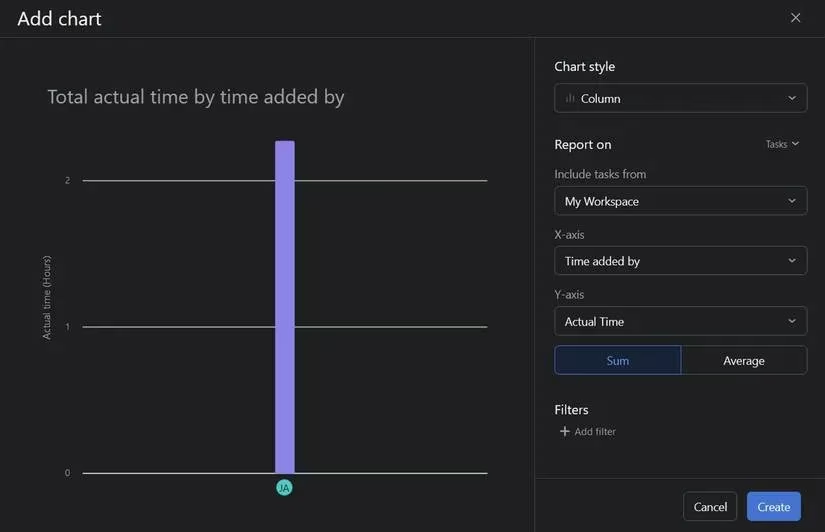
This reporting view helps managers see whether time is concentrated in a few hands or distributed evenly. In 2026, such visibility matters more than ever because hybrid teams often work asynchronously and cannot rely on hallway observations.
Templates: Preserving a Time-Tracking Blueprint
Teams can convert a project into a template that supports time-tracking data. This is especially helpful for recurring client work, sprints, or campaigns that use the same estimate fields and reporting structure. A template becomes a reusable mold for future projects, not a rigid cage: it preserves the useful shape while leaving room for adaptation. To save a custom template:
-
Click the dropdown arrow to the right side of the project name on the top navigation bar.
-
Select Save as template.
-
Rename the template and choose who can access and edit it under the Privacy option.
-
Click Create Template.
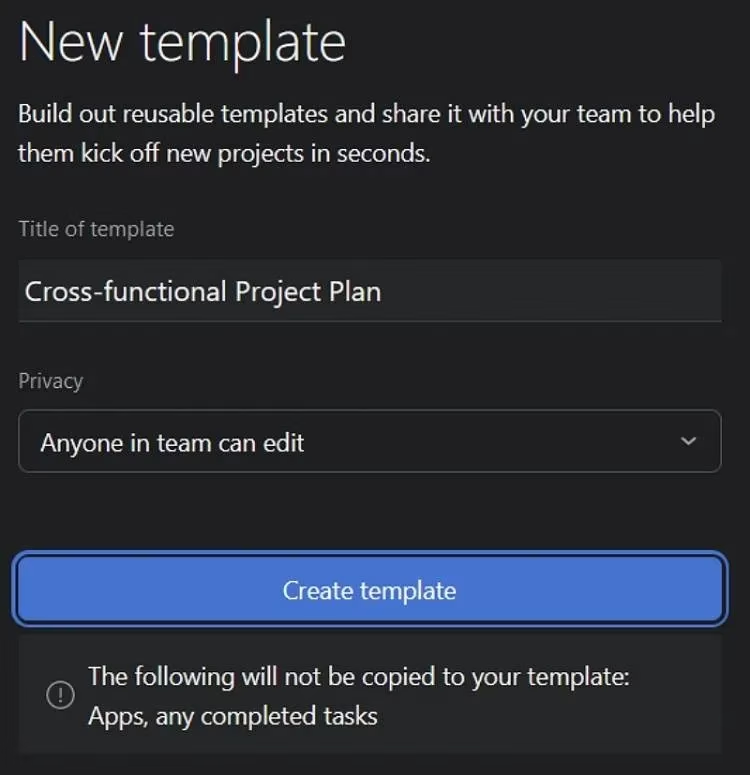
Templates also help teams use Asana My Tasks more effectively, because recurring assignments can inherit consistent time fields and reporting categories.
2026 Best Practices for Asana Time Tracking
| Practice | Why it helps | Action |
|---|---|---|
| Enable Time Remaining | Reveals estimate versus actual gaps | Turn it on through Customize in each relevant workspace |
| Review subtask rollups weekly | Catches idle time early | Check parent tasks with many subtasks |
| Export CSV monthly | Supports audits and BI analysis | Use Export > CSV from the project menu |
| Use Timeline for subtasks | Prevents deadline surprises | Expand tasks with arrows in Timeline view |
| Build contributor reports | Balances workload | Chart Actual time by Time added by |
| Save templates | Standardizes recurring projects | Use Save as template and set privacy |
In 2026, time tracking is no longer a niche administrative chore. It is a feedback loop for healthier planning, fairer workload distribution, and more credible estimates.
Conclusion
Asana's time-tracking features give teams a structured way to understand where effort goes. Subtask rollups reveal hidden work, CSV import and export keep data portable, Timeline view exposes subtask deadlines, contributor reports show who recorded what, and templates preserve a repeatable system. Whether a user is new to the platform or a seasoned pro, these functions offer practical improvements for project management. The smartest teams treat time data not as a surveillance tool but as a compass. By using Asana's time-tracking capabilities consistently, they can manage projects with greater clarity, less guesswork, and stronger follow-through.
Comments