Picture this: your project is sprawled across your mind like a chaotic jigsaw puzzle, and you're just one missing piece away from pulling your hair out. Enter the Gantt chart – Notion's superhero cape for project managers, freelancers, and students alike. These visual timelines aren't just for corporate bigwigs; they're for anyone who's ever stared at a to-do list and felt a mild sense of panic. In 2026, with remote work being as common as morning coffee, these charts have evolved from corporate boardrooms to digital workspaces, becoming the trusty sidekick for organizing everything from launching a marketing blitz to planning a wedding (or even conquering that novel you've been meaning to write).

At its core, a Gantt chart is like a gossip columnist for your project – it spills all the tea on every task, its timeline, and who's responsible. It lays out the whole shebang: task outlines, expected completion dates, progress percentages, and even who's doing what. For remote teams, it's the virtual watercooler that keeps everyone in the loop without the awkward small talk.
Now, let's talk about getting your hands on one in Notion. Starting from scratch? Bless your heart, but there's a smarter way. Notion offers a pre-built Gantt chart template that's basically a project management starter kit. Getting it is a piece of cake:
-
Head to Notion's template gallery.
-
Find the Gantt chart template (it's free, no strings attached!).
-
Click "Use this template" and select your workspace.
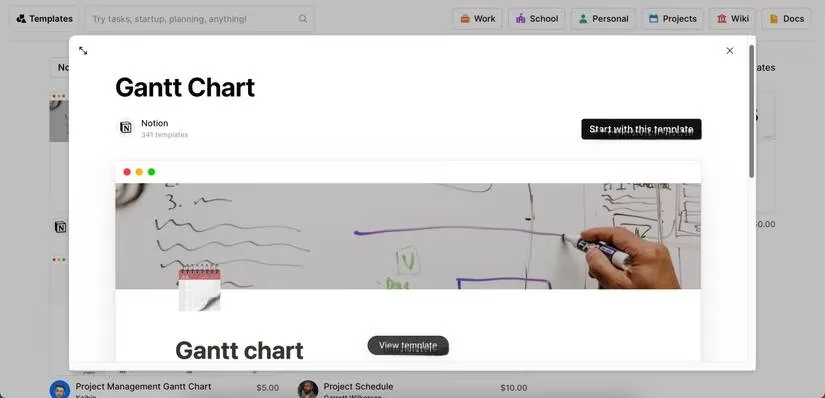
Boom! You've got your template. Now, the real fun begins – making it yours.
First things first, you gotta name your projects. It's like naming a pet; it makes it official. Hover over a project in the Project tab, click Open, and give it a new name that actually means something to you. Or, you can just click directly on the name in the table and start typing. Easy peasy.
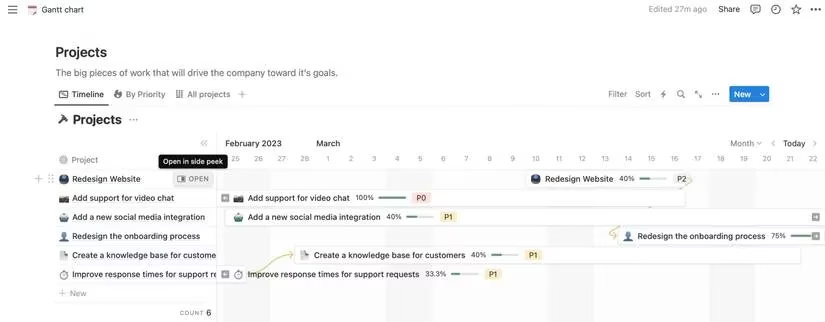
With the big pieces named, it's time to dive into the nitty-gritty. Customization is where the magic happens. You can tweak:
-
Subtasks: Breaking down "Launch Website" into "Buy domain," "Design logo," etc.
-
Status & Progress: Is it "Not started," "In progress," or "Done"? How much is actually done?
-
Timeline: When does this whole thing start and end?
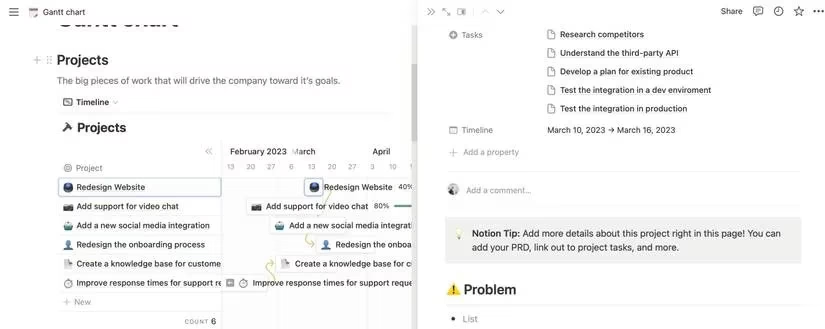
Let's start with subtasks. Open any project card. You'll see some placeholder tasks already chilling there. Click on each to rename them, assign an owner, or update their status. Need more? Hit the + New button to add your own. You can customize these newbies just like the originals – add comments, set dates, the whole nine yards.
Updating the status is a breeze. Open any task or subtask card, find the Status property, and use the dropdown to mark it as "Not started," "In progress," "Done," or even a custom status like "Waiting on Steve." The Progress percentage often updates automatically as you check off subtasks, which is pretty slick.
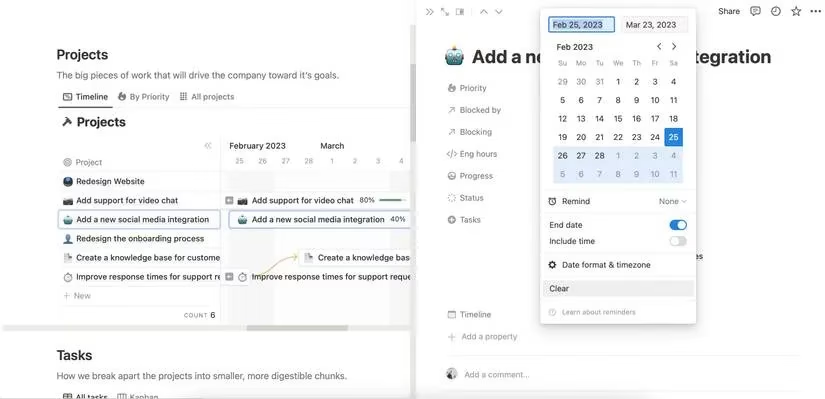
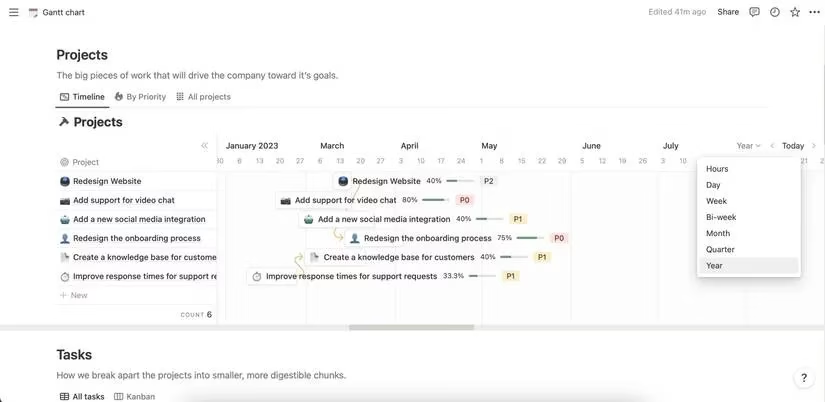
Now, for the timeline – the heart of the Gantt chart. Changing dates is as simple as clicking on the Timescale section in a task card and picking new start/finish dates from the calendar. But here's a cool trick: you can also just click and drag the task bar directly on the Gantt chart timeline. Need to push a task back a week? Drag it. It's satisfyingly tactile for a digital tool.
Feeling like the view is too zoomed in or out? Play with the perspective. On the top-right of the Gantt view, there's a dropdown to change the timescale – switch between Month, Quarter, Year, or other views to see the big picture or the daily grind. There's even a Today button to jump right to the present. On the left, you can switch views to see tasks sorted By Priority or get the All projects overview. It's all about finding the view that doesn't make your eyes cross.
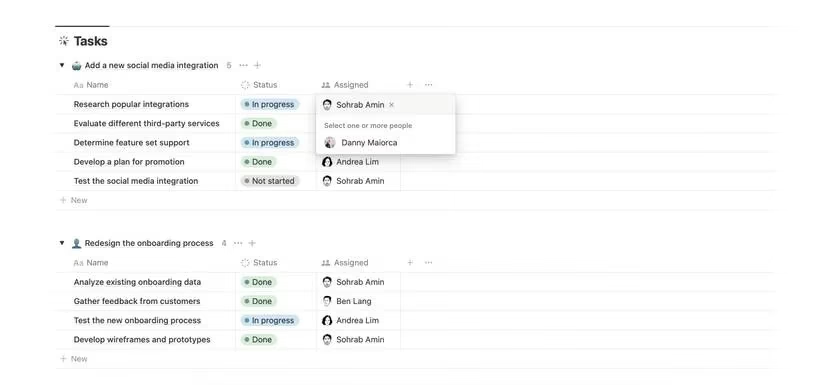
If you're flying solo, you can stop here. But if you've got a team, listen up – delegation is key. You can assign tasks in two main ways:
-
In the main Tasks table, find the Assigned column for a task and start typing a teammate's name.
-
Or, open a specific subtask and look for the Assigned property to tag the responsible person.
This way, everyone knows their part, and you avoid that classic "I thought YOU were doing that!" moment.
Look, Gantt charts in Notion might seem like a beast at first glance – all those bars and dates – but once you get the hang of it, it's a game-changer. It turns project chaos into a clear, visual story. Whether you're managing a remote team across time zones or just trying to get your own ambitious goals in order, this tool helps you see the forest and the trees. And if Gantt charts aren't your jam in the long run, that's okay too; there are plenty of other fish in the project management sea. But for now, give this Notion template a whirl. Your future, more-organized self will thank you.
Comments