As someone who has juggled team projects, client calls, and personal commitments, I know firsthand the chaos that scheduling can bring. That endless back-and-forth of "What time works for you?" is a productivity killer. Over the years, I've come to rely on free meeting scheduler apps to streamline my life. These tools are game-changers, whether you're part of a large team or managing your own freelance business. They let others book time with you based on your real availability, cutting out the administrative noise. In this guide, I'll walk you through my experiences with four of the best free schedulers available in 2026: Calendly, Google Calendar, HubSpot, and Notion Calendar. I'll show you how I use each one, complete with visuals from my own setup process.

Let's start with the tool that feels like an old friend: Calendly. It's arguably the most famous name in the game, and for good reason. The simplicity is its superpower. I signed up in minutes using my Google account—you can use Microsoft too—and was immediately struck by how intuitive it felt. It supports English, German, Portuguese, Spanish, and French, making it quite versatile for international contacts. The core idea is brilliant: you share a single Calendly link, and people can see your real-time availability and book a slot that works for them. No more double-booking or time zone confusion.
My first step was always to set my working hours. This is crucial! You don't want meeting requests popping up at 10 PM. Here’s exactly how I did it:
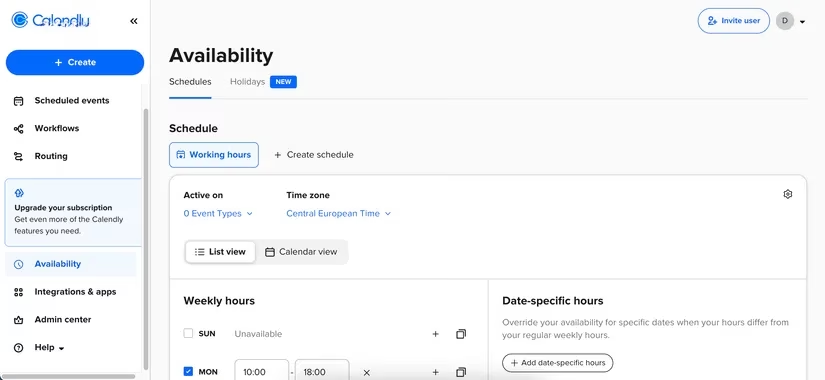
I navigated to the settings, found the "Availability" section, and defined my weekly schedule. Once that foundation was set, I was ready to create my first meeting type. Calendly offers two paths: editing a pre-made template or building from scratch. For a standard 30-minute intro call, I simply selected the existing "One-on-One" template.
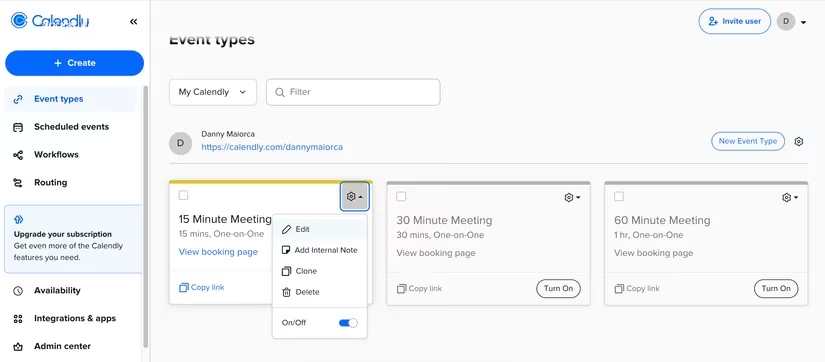
I tapped the cog wheel, hit "Edit," and customized the details—duration, title, description, and even the conferencing tool (I linked my Zoom). The process felt fluid and gave me full control. For more unique meetings, like a weekly project sync, I used the "New Event Type" option to build something tailored from the ground up. The ability to embed these booking pages on my website or in my email signature has been a massive time-saver.
While Calendly excels at letting others book with you, sometimes you need to proactively schedule a one-off meeting. That's where Google Calendar shines in my workflow. It's deeply integrated into my digital life. If I've already agreed on a time with a colleague, Google Calendar is my go-to for locking it in. The process is wonderfully straightforward.
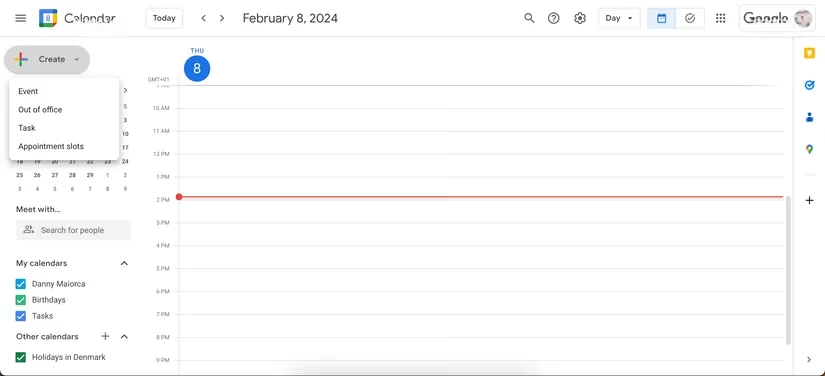
I simply click the big red "Create" button (or double-click a time slot), fill in the title, set the date and time, and add guests by typing their email addresses. I love that I can attach Google Meet video conferencing with one click or paste a link to any other platform. Adding a location, description, or attachments is just as easy. It’s the perfect tool for seeing how that new meeting fits into the broader mosaic of my day or week.
For a more professional, business-oriented approach, I turned to HubSpot's Meeting Scheduler. Known for its marketing tools, HubSpot offers a surprisingly powerful and free scheduler. Sign-up was familiar—again with my Google account. The setup wizard is very guided, which I appreciated.
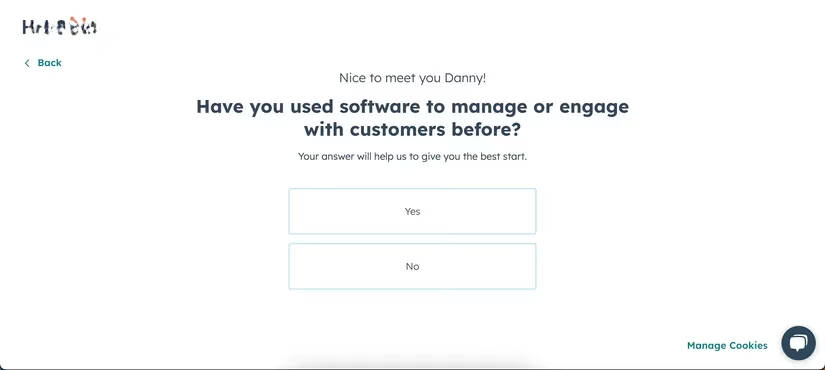
The first critical step was connecting my calendar. This allows HubSpot to block out times I'm already busy, preventing overlaps. Then, the fun part: designing my booking page. HubSpot offers a level of branding that feels more corporate. I could pick custom colors and even choose avatars, which was a nice touch for personalizing client-facing pages.
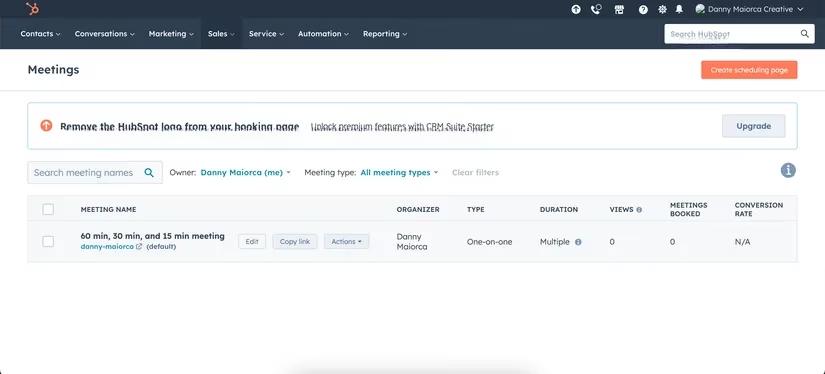
Creating the actual meeting type involved setting the duration, buffer times, and scheduling limits (like how far in advance someone can book). The interface walks you through each step methodically. Once published, I got a sleek, branded booking link to share. While it's built for sales and business, I've found it useful for more formal academic or volunteer group scheduling too.
Finally, as a longtime fan of Notion for note-taking, discovering Notion Calendar (formerly Cron) felt like a natural extension of my workspace. It's sleek, fast, and lives conveniently in my desktop menu bar. Scheduling a meeting here is perhaps the most visual and immediate process.
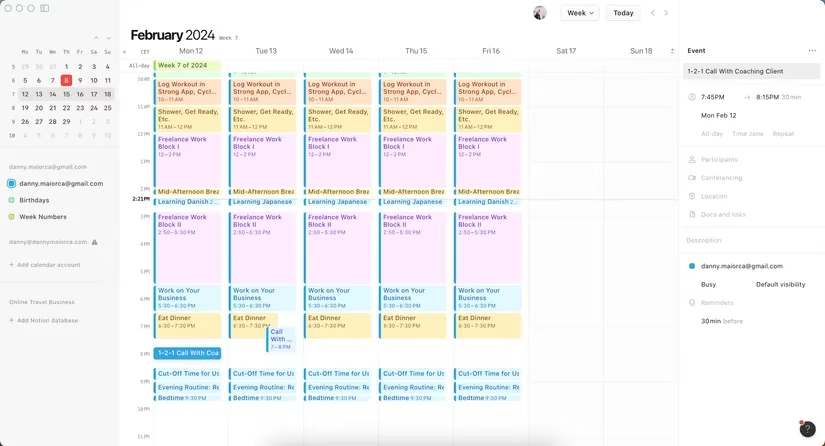
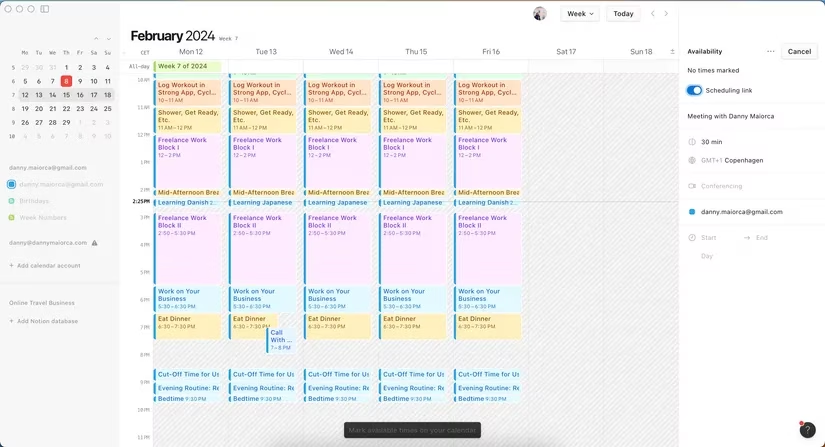
I just double-tap on an empty time slot in my calendar view. A pop-up form appears right there. I type the event name, adjust the time by dragging the edges of the block, and add participants. It feels very tactile. But its killer feature for scheduling is the "Share availability" tool. By pressing 'S' on my keyboard, I can generate a link to my free times that I can send to a group. They can then vote on or select a slot that works for everyone—perfect for coordinating with multiple busy people.
So, how do I choose? My use case dictates my tool:
-
For letting clients, podcast guests, or network contacts book time with me: I use Calendly. It's the universal standard, incredibly easy for them to use, and just works.
-
For proactively scheduling one-on-ones or team calls where the time is already agreed: Google Calendar or Notion Calendar are my homes. They're perfect for the final scheduling step and daily time management.
-
For a branded, professional booking page integrated with business tools: HubSpot is the standout. It feels more formal and feature-rich for client interactions.
-
For coordinating the best time among a group of 3+ people: Notion Calendar's "Share availability" is my secret weapon. It eliminates the group chat polling nightmare.
In 2026, time is still our most precious resource. These free tools have empowered me to protect mine and respect others'. They've transformed scheduling from a tedious chore into a seamless, automated part of my workflow. Whether you're a solopreneur like me, a team leader, or a student, one of these apps will undoubtedly cut the clutter from your calendar and give you back hours each month. The best part? You can try them all for free and see which one fits your personal rhythm.
Comments