Ah, printers—those temperamental beasts that seem to have a personal vendetta against productivity. But hey, as of 2025, hooking one up in Windows 11 is way smoother than it used to be. Back in the day, it felt like wrestling a greased pig, but now, it's often a piece of cake, with Windows auto-detecting your gear faster than you can say "paper jam." I'll walk you through the whole shebang, from wired wonders to wireless wonders, and throw in some fixes for when things go sideways. Buckle up, buttercup, 'cause this ride is gonna be fun and full of laughs—no sweat!
Adding Wired Printers: Easy Peasy Lemon Squeezy 🍋
First off, if you're rocking a wired printer, connecting it is a breeze in Windows 11. Most times, it's plug-and-play magic—just jam that USB cable in, and boom, Windows does the heavy lifting. But if it doesn't auto-detect, no biggie; I've got your back with a manual step-by-step. Here’s how to confirm it's all set:
-
Press Win + I to open Windows Settings—it's like opening a treasure chest full of tech goodies.
-
Head to Bluetooth and devices on the left, then click Printers & scanners on the right.
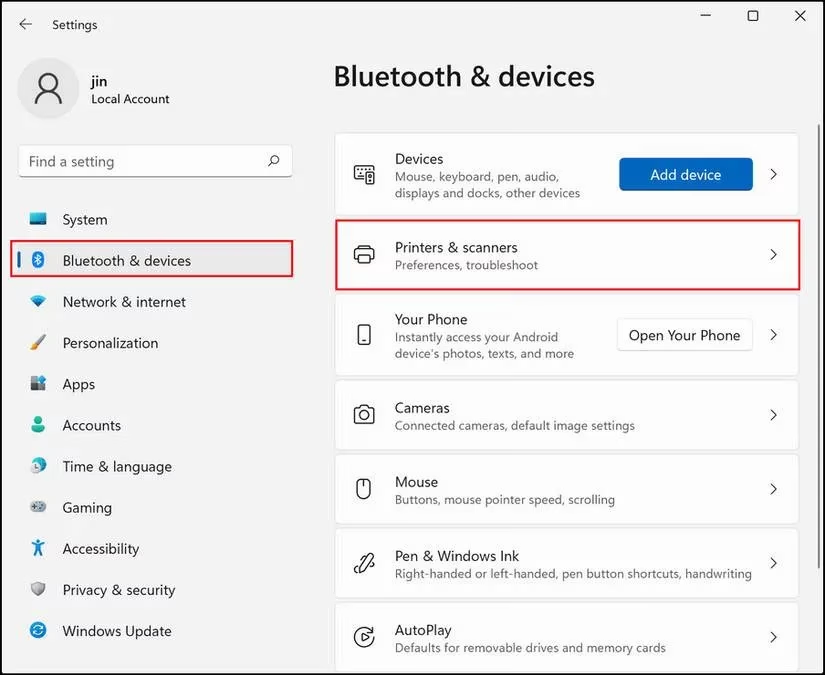
- Windows scans for devices like a bloodhound on a trail. If your printer pops up, select it and you're golden. If not, and you see that pesky 'The printer that I want isn’t listed' message, hit Add manually.
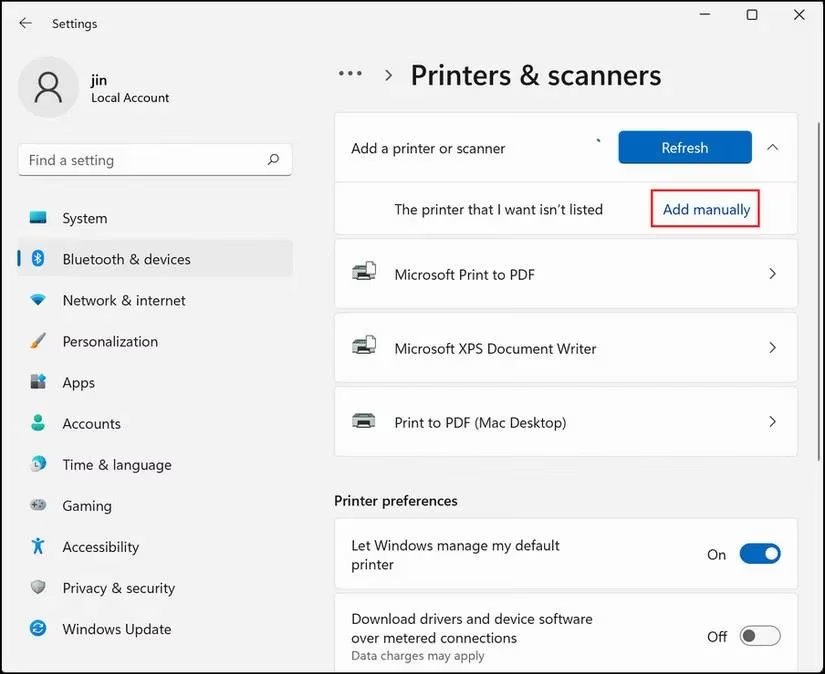
-
Now, choose Use an existing port or similar options—easy as pie.
-
Time for drivers! Scoot over to your printer maker's website and grab the latest 2025 driver (those old CDs are so last decade, but if you've got one, insert it and pick Have Disk). Otherwise, click Windows Update to fetch it automatically.
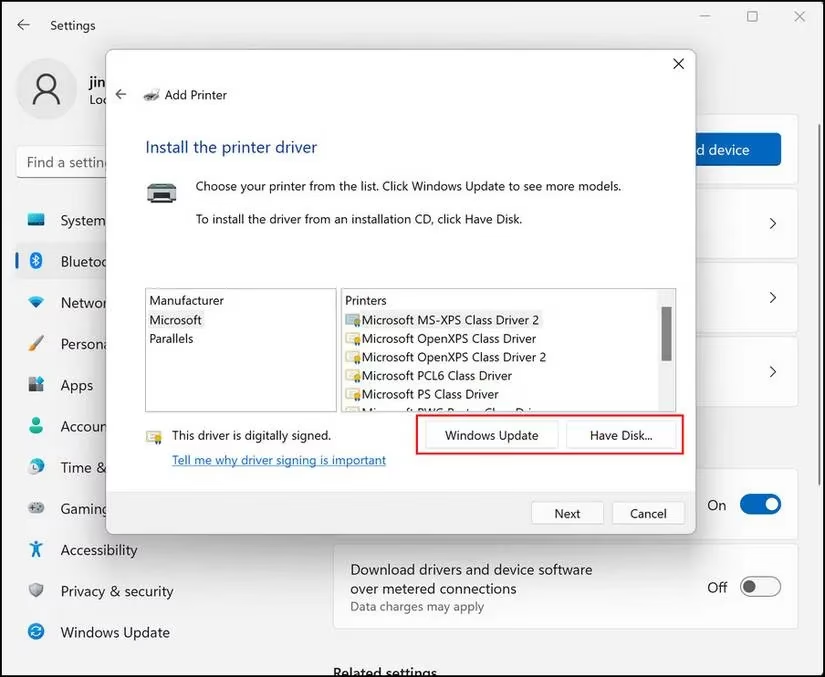
- Once installed, name your driver—something fun like "Paper Pusher Supreme"—and hit Next. Test it out, and you should be printing like a pro. If not, well, that's why we've got troubleshooting later!
Going Wireless: Cutting the Cord with Style 📶
Wireless printers? Oh boy, they're the cat's pajamas—no more tripping over cables! But getting 'em set up requires your PC and printer to be on the same Wi-Fi or Bluetooth wavelength. In 2025, Windows usually sniffs them out automatically if they're connected. Here’s my foolproof method:
-
Fire up Windows Settings via Win + I, then cruise to Printers & scanners.
-
Click Add device—it should scan and list your printer faster than you can blink.
-
If it shows up, select it and enter any password needed (hopefully not something like "password123"—c'mon, be smarter than that!).
-
If it's MIA, hit Add manually again.
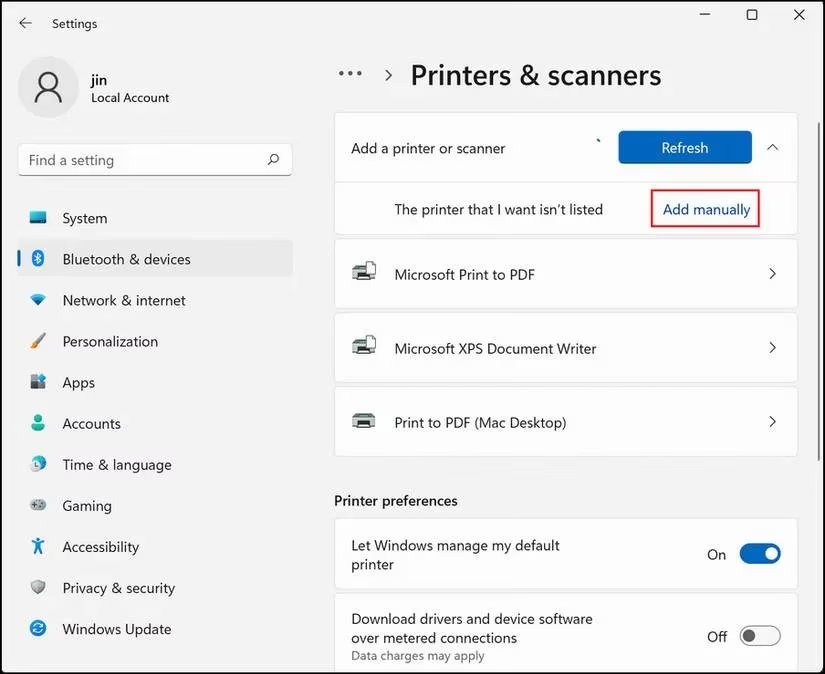
-
Pick your connectivity flavor from the list—like Bluetooth or Wi-Fi—and click Next.
-
Find your printer in the lineup, add it, and voilà! You're wireless and fancy-free. If you hit a snag, consult your printer's manual or jump to my troubleshooting tips below—don't pull your hair out just yet!
Troubleshooting: When Things Go Pear-Shaped 🍐
Alright, so the Add device button might sometimes ghost you—totally frustrating, right? But in 2025, Windows 11 has slick troubleshooters that act like digital doctors. Run the printer troubleshooter first—it's a lifesaver:
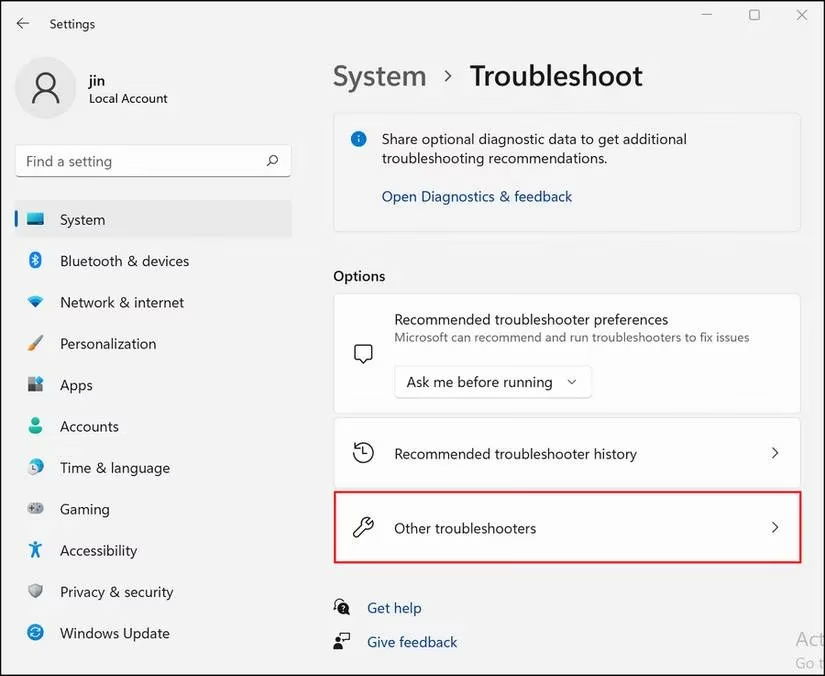
- Open Settings with Win + I, go to System > Troubleshoot, and choose Other troubleshooters.
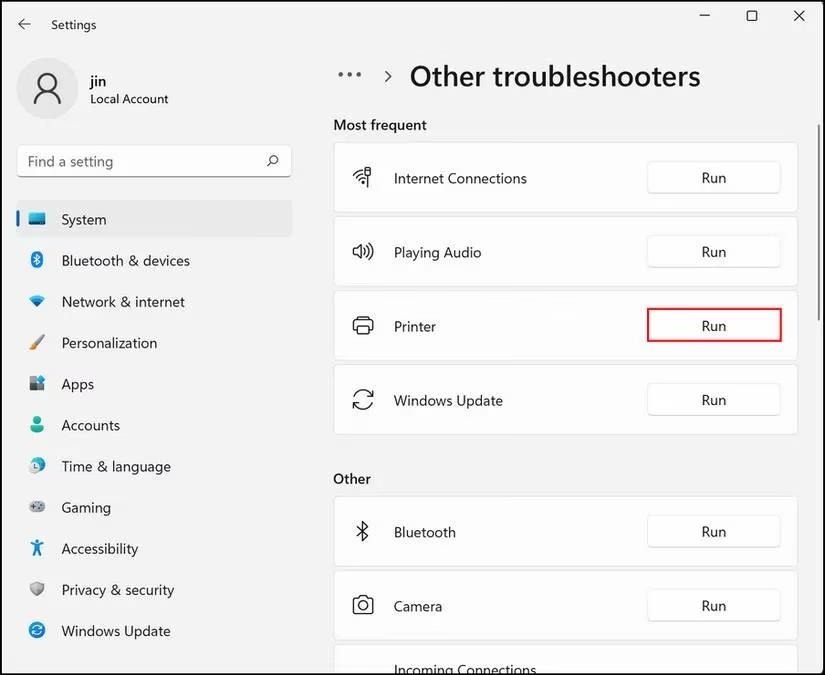
- Select Printer and hit Run—it scans for gremlins and suggests fixes automatically.
- After it works its magic, retry adding your printer.
If that doesn't cut it, updates are key. Remember that old KB5006746 update from years ago? Yeah, it caused headaches, but Microsoft has patched things up big time in 2025. Get the latest fixes:
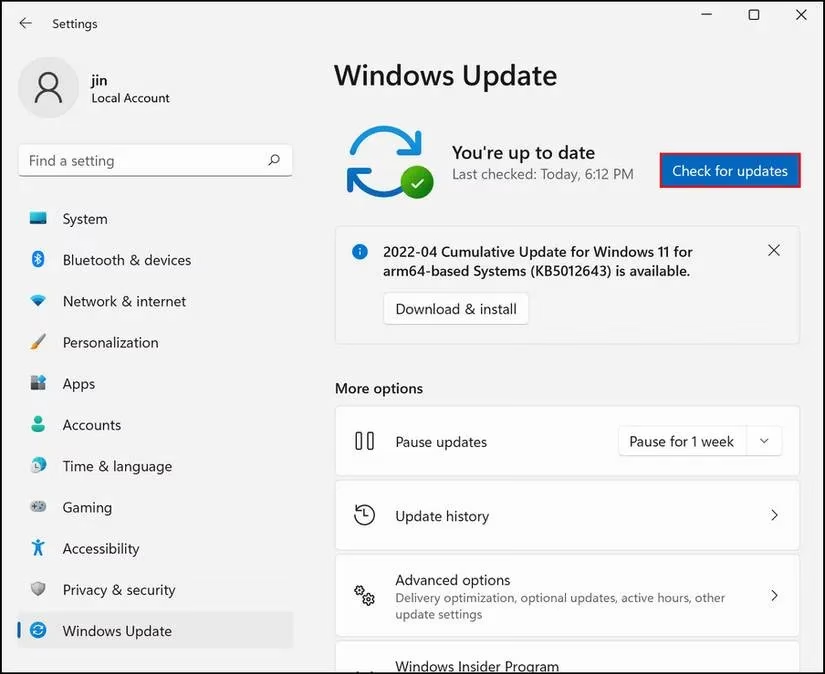
- In Settings, head to Windows Update and click Check for updates.
-
Install any available updates—they're smoother than ever now.
-
Also, keep drivers fresh by checking for updates in Device Manager.
For those stubborn issues, here's a quick comparison table of common problems and fixes—'cause who doesn't love a good table?
| Issue Symptom 🚩 | Quick Fix 💡 | Why It Works 🤓 |
|---|---|---|
| Printer not detected | Run troubleshooter | Scans for hidden glitches |
| Driver errors | Update via Windows Update | Grabs the latest 2025 drivers |
| Connection drops | Reboot router/PC | Resets network gremlins |
| Add button fails | Install all Windows updates | Patches known bugs |
Wrap-Up: Printing Like a Boss in 2025 🎉
So there you have it, folks—adding printers in Windows 11 is now a walk in the park compared to the dark ages. With automatic detection, manual tweaks, and nifty troubleshooters, you'll be churning out documents in no time. If all else fails, take a deep breath, grab a coffee, and remember: tech is supposed to make life easier, not drive you bonkers. Happy printing, and may your paper jams be few! 😊
Comments