I used to think of Evernote as just a digital filing cabinet—a place to dump random thoughts, save web articles I’d never read again, and store to-do lists that haunted me. It was like owning a Swiss Army knife and only using the tiny scissors. That all changed when I decided, in 2026, to truly explore what this powerful app could do. I discovered that Evernote is less of a simple notebook and more of a central command center for my digital life, a feature-packed ecosystem I had barely scratched the surface of. My journey from a casual note-taker to a power user was filled with revelations about features I never knew existed, transforming how I work, research, and organize my entire world.
🤖 My AI-Powered Co-Pilot: More Than Just a Spellchecker
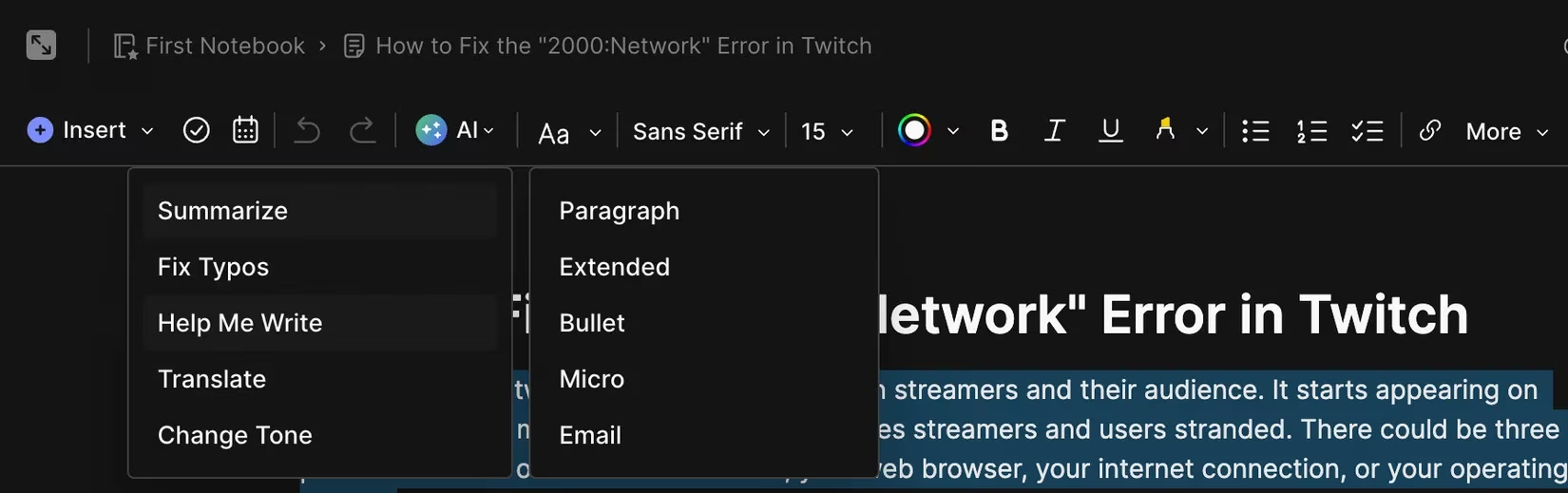
One of the most transformative discoveries was Evernote's integrated AI assistant. It felt like stumbling upon a secret passage in my own house. This wasn't just a grammar checker; it was a creative partner. I could highlight a messy brain dump, click the AI menu, and watch as it polished my ramblings into coherent paragraphs, like a master glassblower turning molten sand into elegant crystal. Need to summarize a 3,000-word research note for a quick meeting? Done. Want to translate a recipe from Italian? Fatto! The ability to adjust the tone—from formal to friendly—saved me countless hours when drafting emails and client proposals. On the mobile app, refining an entire document at once felt like having a personal editor in my pocket, ready to whip any text into shape.
🔍 The Digital Archivist: Finding Needles in Haystacks
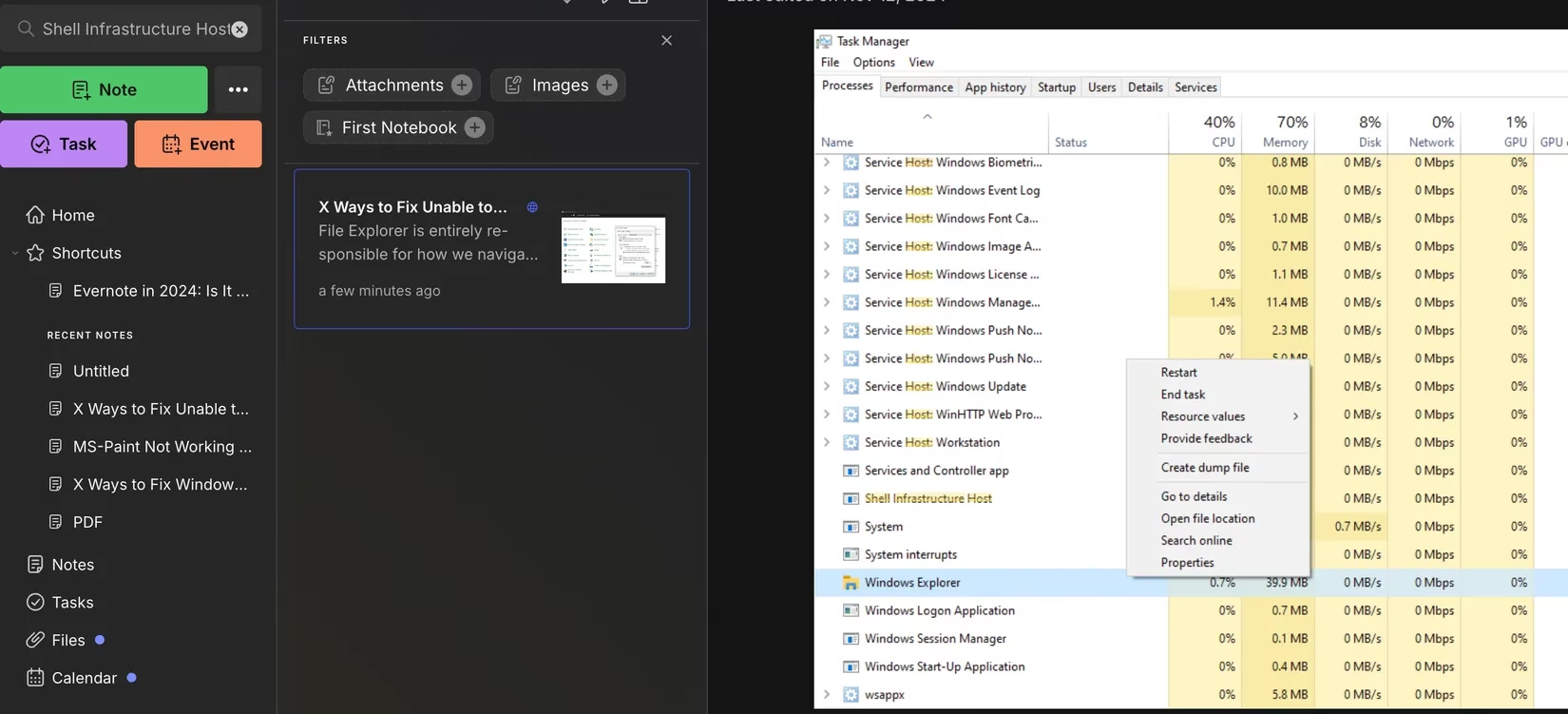
If the AI was my co-pilot, then the search function became my clairvoyant librarian. The true magic lies in its ability to peer inside attachments. I used to dread searching for a specific quote in a stack of saved PDFs or a detail in a scanned receipt—it was like trying to find a specific star in a galaxy by looking through a telescope one inch at a time. Evernote's advanced OCR (Optical Character Recognition) changed everything. Now, I simply type a keyword into the search bar, and it scours the text within images, handwritten notes, and documents. Finding "Shell Infrastructure Host" in an old screenshot of my Task Manager? Instant. This feature alone has reclaimed hours of my life previously lost to manual digging.
📸 From Physical to Digital: The Seamless Scanner
As someone who still jots ideas on napkins and notebooks, the smartphone app's scanning feature was a game-changer. It felt like I had a tiny, dedicated archivist living in my phone. I've completely abandoned other scanning apps. The process is effortless: open a note, tap the camera icon, and let the Auto mode work its magic. It captures pages, flattens them, and imports them directly. The OCR magic means I can later search for words within my own handwriting. When the auto mode struggles with a crumpled page or tricky lighting, switching to manual mode gives me full control. It’s the bridge between my analog impulses and my digital workflow.
🌐 The Research Powerhouse: Web Clipper
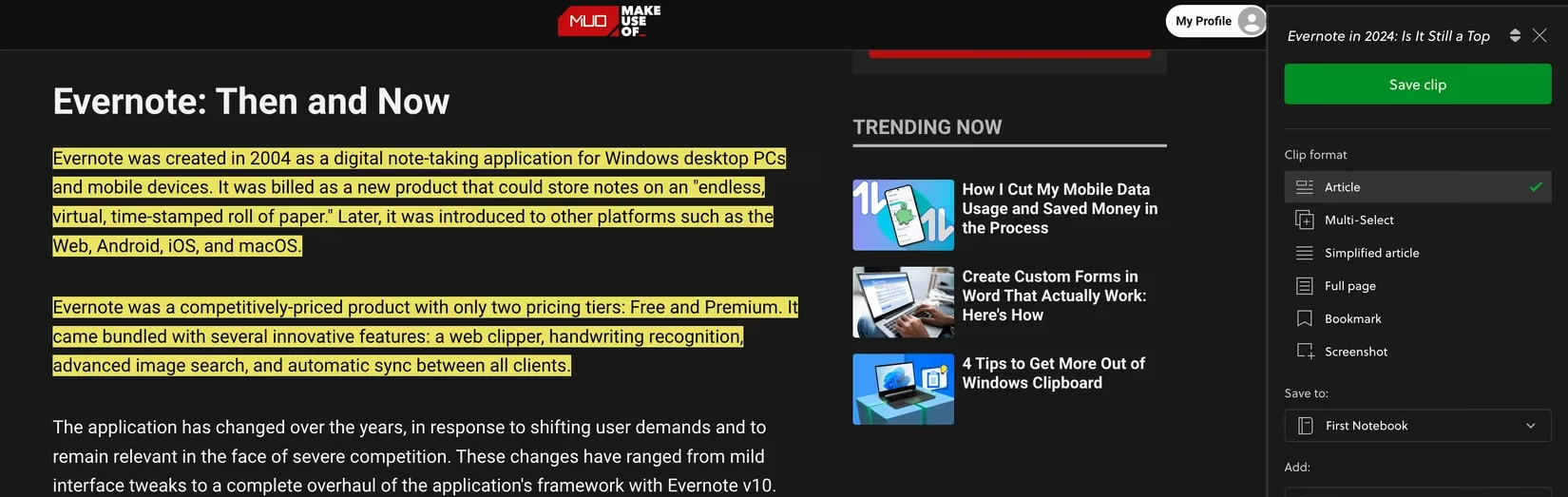
The Evernote Web Clipper is the tool that turbocharged my research. It’s so much more than a bookmark saver. With the browser extension installed, I can capture entire articles, specific sections, or just clean text, all while preserving the original formatting, images, and links. It’s like having a teleportation device for information from the web directly into my organized knowledge base. This feature has become indispensable for my studies and content creation, creating a personal, searchable library of online resources in minutes.
🏷️ Taming the Chaos: The Art of Tagging
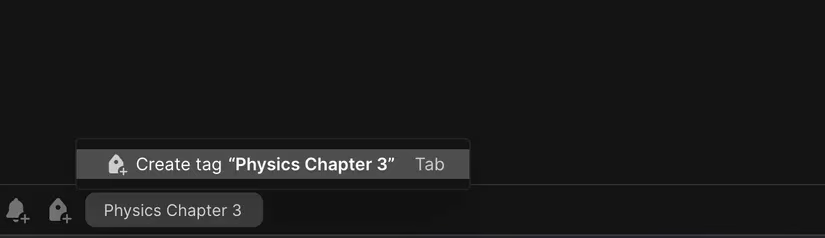
As my Evernote library grew, it threatened to become a digital hoarder's paradise. Tags became my salvation, my system of constellations in a sky full of stars. Instead of relying on vague notebook titles, I tag notes with specific, actionable labels: #ProjectAlpha-2026, #Invoice-ToProcess, #Recipe-Dinner. A single note can have multiple tags, making it findable from any relevant angle. Creating a tag is simple—click the tag icon and type. Now, finding anything is a quick search away, keeping my digital space organized and my mind clear.
🔗 The Ultimate Integration: Evernote + Google Drive
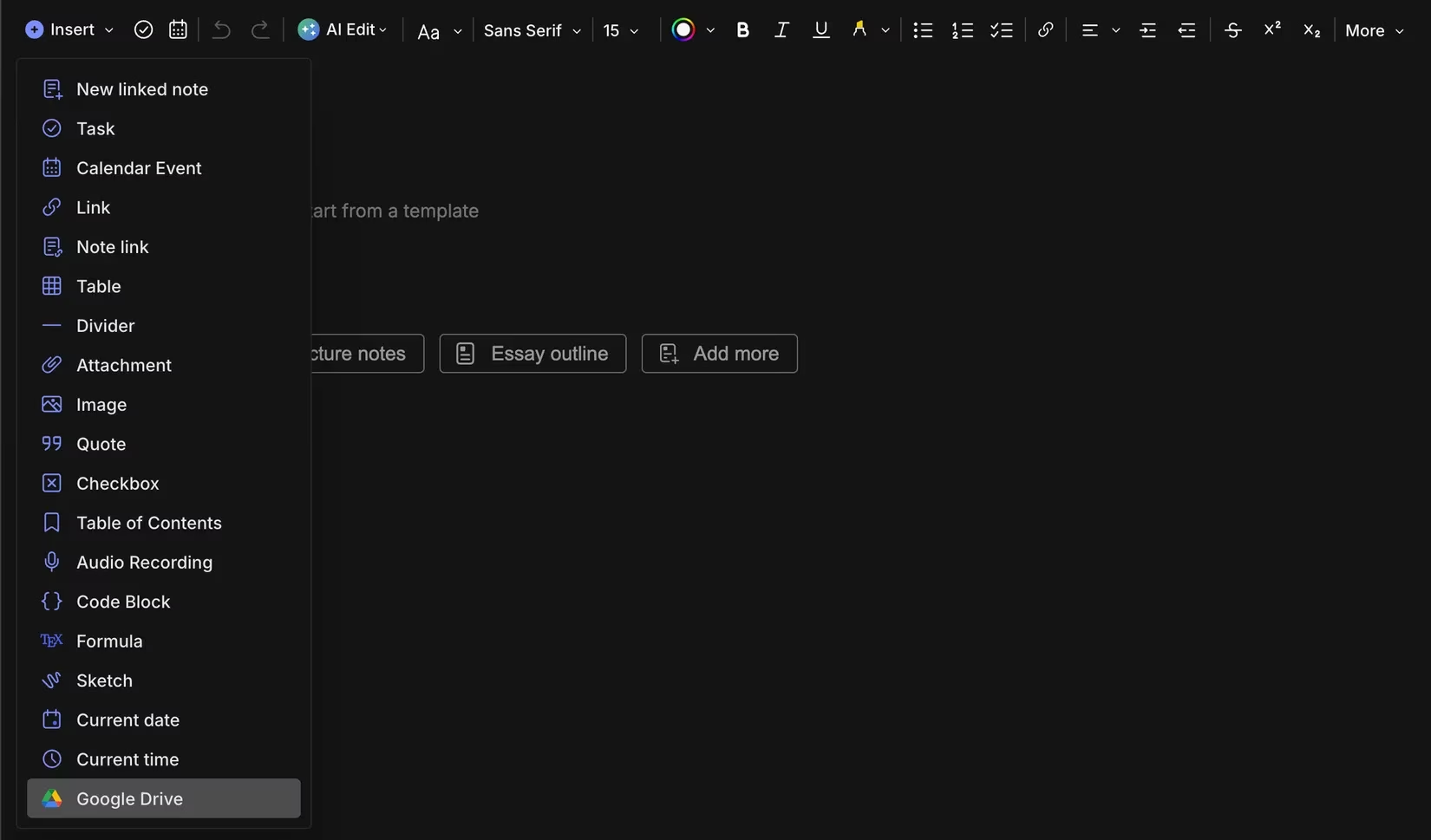
Since I live in Google Workspace for work, the Google Drive integration felt like someone finally built a highway between my two favorite cities. I can now insert live links to Google Docs, Sheets, or Slides directly into my Evernote notes. Even better, Evernote's powerful search indexes the content inside those linked files. No more app-switching or frantic tab-hunting. Connecting the two is a breeze through the Insert menu, and it has made collaboration and project management seamless. My workflow now feels like a single, unified organism instead of a collection of disparate parts.
⚡ My Digital Dashboard: Shortcuts
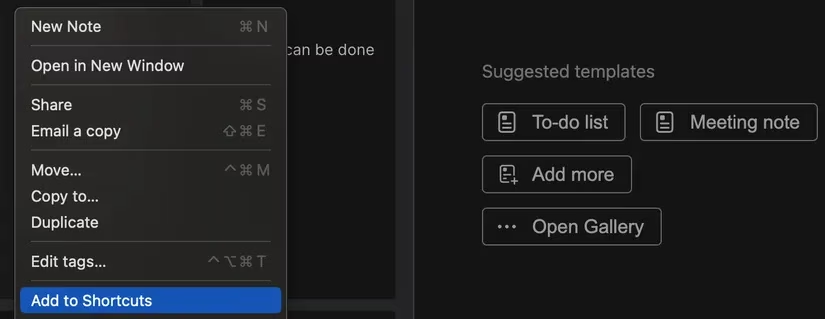
The "Recently Accessed" list was too ephemeral for my needs. The Shortcuts feature allowed me to build my own personalized dashboard. I pinned my daily journal template, my active project hub, and my key reference notes to the sidebar. It’s like having my most important tools laid out on a workbench, always within arm's reach. Adding a shortcut is just a matter of clicking the three dots on any note, tag, or saved search. This small feature dramatically reduced the friction in my daily use.
🎤 When Typing Fails: Voice Notes & Transcription
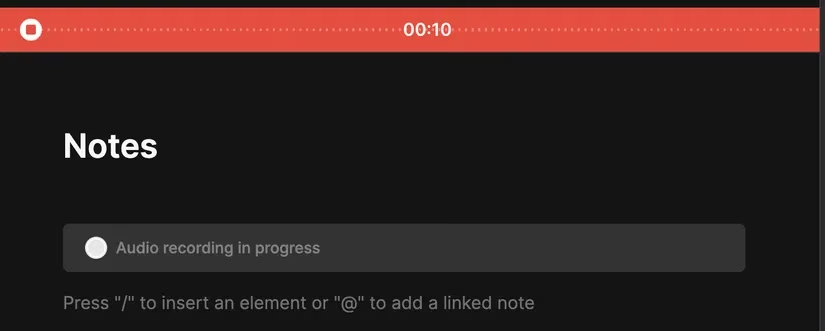
Finally, for those moments when my thoughts outpace my fingers, the audio note feature is a lifesaver. It’s my digital dictaphone. I use it to capture ideas on the go, record meeting notes, or even brainstorm aloud. The real killer feature is the transcription. While not perfect, it converts my spoken words into text, giving me a solid draft to edit and refine—a boon for any writer or student. Recording is simple: on desktop, it's in the Insert menu; on mobile, tap the + and select Audio. It’s the perfect tool for capturing inspiration before it flutters away, like a butterfly net for fleeting ideas.
My journey taught me that Evernote is not a static tool but a dynamic platform. By embracing these often-overlooked features—the AI assistant, deep search, smart scanning, powerful clipping, strategic tagging, deep integrations, handy shortcuts, and voice notes—I've transformed it from a simple note repository into the beating heart of my productivity system. If you're still just taking basic notes, you're sitting on a goldmine of potential. It’s time to start digging.
Comments