It’s 2026, and as someone who constantly juggles multiple projects, I’ve been on the lookout for a tool that seamlessly blends task management with creative brainstorming. That’s when I rediscovered ClickUp Whiteboards—a feature I’d casually glanced at back in 2023 but never fully explored. Over the last few months, these dynamic digital canvases have completely reshaped how I plan, collaborate, and bring ideas to life. Let me walk you through my hands‑on experience, from setting up my first whiteboard to mastering the little details that make everyday work feel effortless.
When I first dove in, I was pleased to discover that ClickUp hasn’t hidden whiteboards behind a paywall—even free accounts can create up to three whiteboards, while the Unlimited plan ($5/member/month) offers ten, and Business plans and above unlock unlimited whiteboards. My team is on the Business Plus plan, so we never have to worry about caps, but even if you’re just exploring, the free tier gives you a solid sandbox.
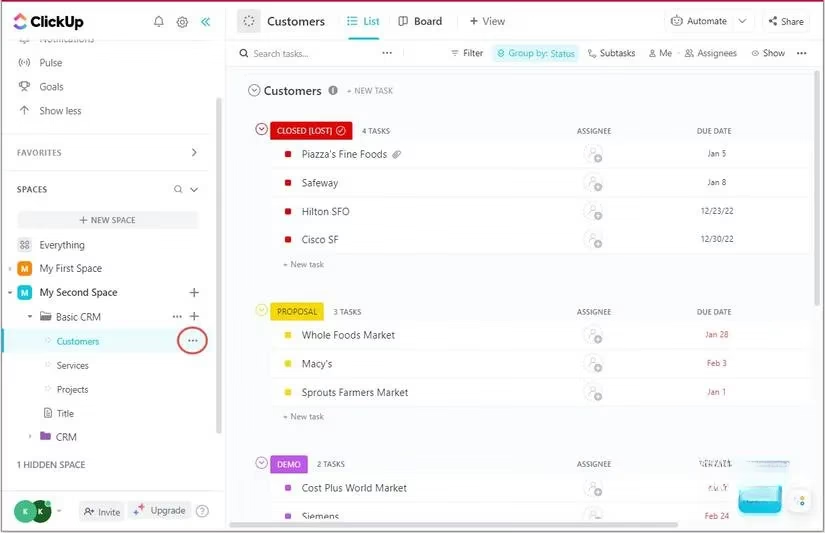
Creating a whiteboard felt intuitive right away. I’ve found three straightforward paths: hovering over a Space, Folder, or List in the sidebar and clicking the ellipsis, then selecting Create new > Whiteboard; switching to the views bar of any location and hitting + View > Whiteboard; or simply tapping the colorful Quick Action button in the bottom‑right corner and choosing New Whiteboard. Each route opens a naming dialog, a location selector, and a privacy toggle. I usually keep my brainstorming boards open to my team, but if I’m sketching out something sensitive, the Private mode is a single click away.
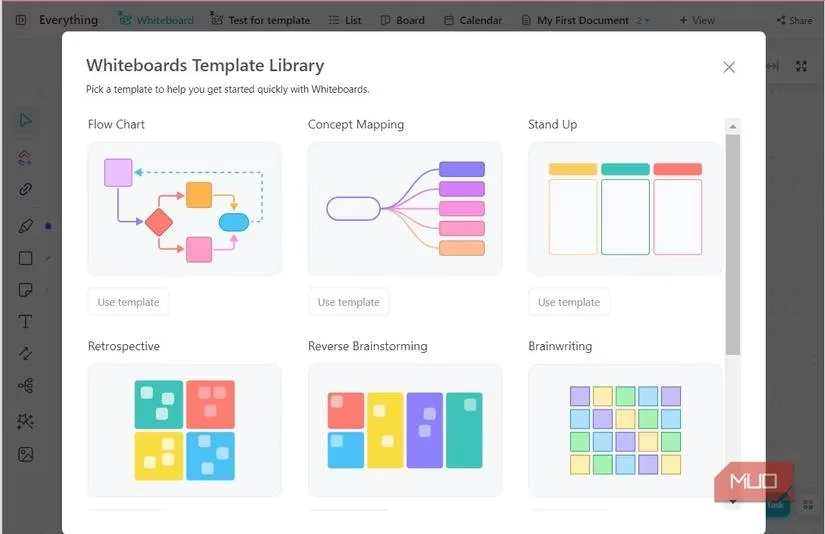
After naming the board and hitting create, the template library springs up. Nine pre‑built templates cover common scenarios like project kickoffs, retrospectives, and flowcharts. I often start from scratch, but the library is always accessible later by clicking the magic‑wand icon on the toolbar. The blank canvas can look intimidating at first, but the toolbar packs everything I need within easy reach.
The toolbar is where the magic happens. ClickUp Items lets me pull real tasks and Docs directly onto the canvas—I love gathering related action items from different lists into one visual space without losing their connection to the original project. Website Cards embed live content like YouTube videos, Google Sheets, or Figma designs, so I rarely have to switch tabs during a collaboration session. The Draw tool offers freehand sketching, and while it was a bit choppy in the 2.0 era, the 2026 version (currently running on ClickUp 3.0 and beyond) has become remarkably smooth for quick annotations.
For structured diagrams, Shapes provide five base figures, and each shape sprouts plus‑icons that let me connect related elements instantly. Sticky Notes are perfect for quick reminders, and Text fields give me room for longer explanations. One of my favorite hidden gems is the Connector tool, which illustrates relationships between any two objects. And when thoughts start racing, the Mind Map feature helps me layer concepts in a hierarchical, branching structure that stays tidy even as the board gets crowded. Files from my computer—JPG, PNG, or SVG—can be uploaded with the Upload button, so reference images are always at hand.
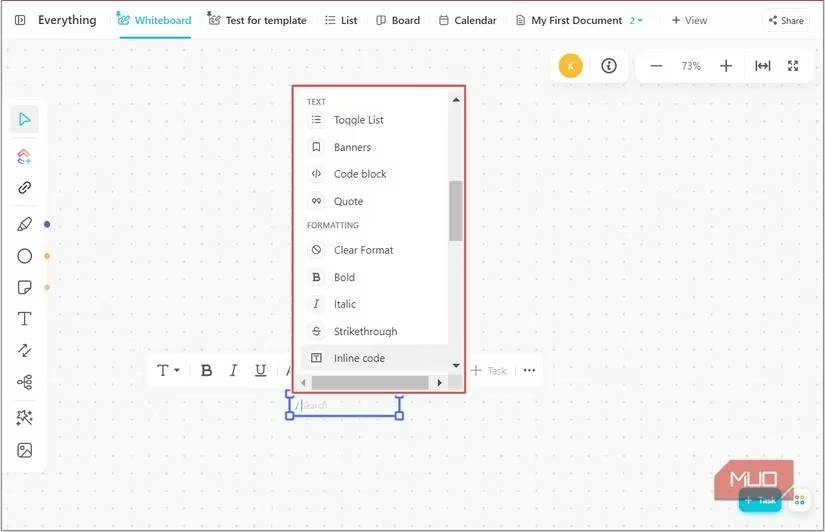
Text formatting surprised me: typing the forward slash (/) inside any text box reveals a menu that can change font colors, insert dividers, or even drop buttons onto the canvas. It’s a small touch that makes whiteboards feel more like a living document. Even better, I can select any text snippet and click + Task from the mini toolbar, instantly converting an idea into an actionable item that appears in my ClickUp task list.
Navigating the board is fluid. The top‑right mini toolbar offers zoom, fit‑to‑screen, and full‑screen modes. I toggle between Select (V) for moving elements and Move (M) when I want to pan across different sections with two‑finger scrolling. Keyboard shortcuts speed everything up—the shortcuts icon lists every available combination, and I’ve memorized the ones I use most.
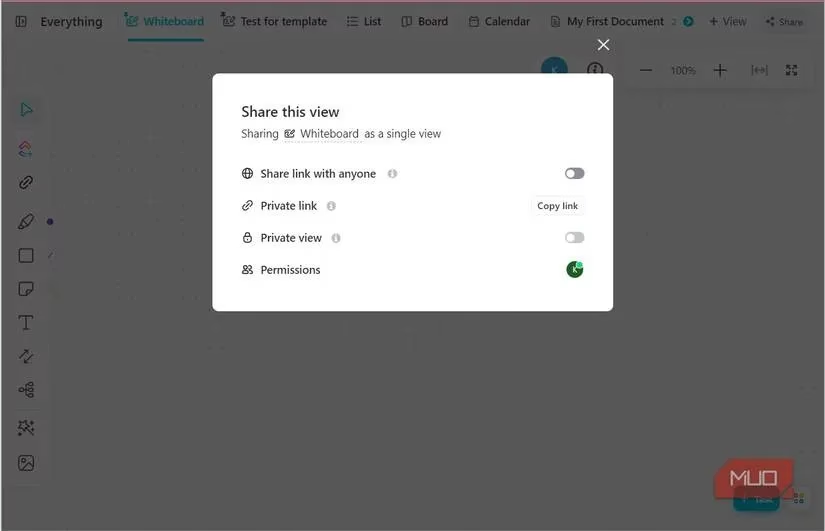
Sharing is equally flexible. Private view keeps the board to myself, while adding specific teammates under Permissions and handing them the private link brings them in without exposing it to the whole workspace. When I need to collaborate with external stakeholders, I enable the Share link with anyone option. It’s a balance of security and openness that matches real‑world workflows.
In 2026, ClickUp Whiteboards have grown into a mature, indispensable part of my daily routine. They aren’t just a virtual whiteboard; they’re a bridge between free‑form creativity and structured project management. By mingling tasks, docs, embedded media, and drawing tools on one infinite canvas, they eliminate the friction of switching between apps. Of course, if you need deeply specialized whiteboarding features, dedicated tools like Miro or FigJam still lead the pack. But for those of us who live inside ClickUp, the whiteboard is a powerhouse that keeps ideas and execution in perfect sync. I can’t imagine going back to the days of scattered sticky notes and separate diagramming apps.
Insights are sourced from GamesIndustry.biz, and they help frame why all-in-one work platforms like ClickUp keep gaining momentum: as teams scale, consolidating brainstorming (whiteboards), documentation, and task execution into a single workflow reduces context switching and makes collaboration more measurable. That industry perspective maps neatly onto the 2026 ClickUp Whiteboards experience—turning free-form ideas into trackable tasks and keeping stakeholders aligned—because the real productivity win isn’t the canvas itself, but the tighter loop between ideation, prioritization, and delivery.
Comments