Let's be real, who hasn't fallen into the trap of downloading yet another shiny productivity app, only to have it gather digital dust after a week? 😅 In 2026, the app ecosystem is more saturated than ever, but the secret to staying organized isn't about adding more—it's about using what you already have, and using it smarter. Your calendar, your email, even your simple notes app... they're all hiding powerful to-do list superpowers. Ditching the endless search for the 'perfect' app and mastering the tools already at your fingertips? Now that's a productivity hack that actually sticks.
Google Calendar & Tasks: Your Schedule & To-Do List, Finally United 🗓️✅
Think of your Google Calendar not just as a timekeeper, but as your command center. It's like giving your schedule a brain for tasks! The seamless integration with Google Tasks means you can schedule an event for a meeting at 2 PM and create a task to 'Prepare slides for meeting' right on the same date. No more jumping between apps—your plan and your actions live in harmony.
How to Make Google Calendar Your Task Master:
-
From the Calendar View: Simply click an empty slot on any date. In the pop-up, switch to the 'Task' tab. Boom—add your title, set a time (or leave it for 'All day'), jot a description, and hit Save. Your task now sits visually on your calendar.
-
From the Dedicated Task Pane: See that little checkmark icon in the top right? That's your Google Tasks hub. Click 'Add a task' to quickly jot something down. The real magic? You can break big, scary tasks into bite-sized subtasks by clicking the
⋮menu next to a task. Suddenly, 'Plan Vacation' becomes 'Book flights', 'Research hotels', and 'Buy sunscreen'—much less daunting!
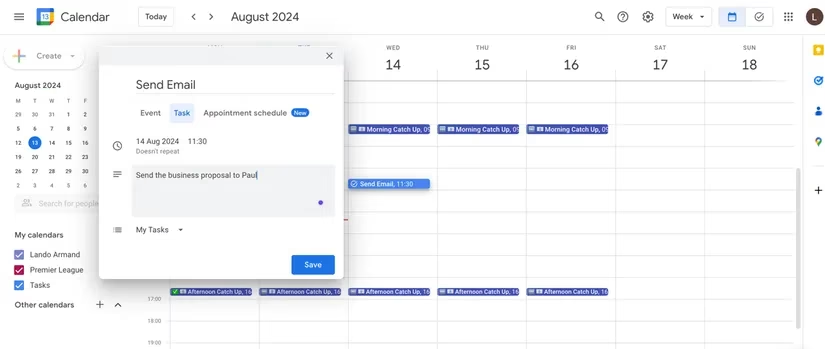
Pro Tip: If your tasks aren't showing up, just check the 'Tasks' box on the left sidebar. It’s like turning on the task layer of your life's map!
Google Docs: Not Just for Essays, But for Epic Checklists 📝✔️
Forget basic bullet points. Google Docs checklists are alive—they give you that supremely satisfying click when you complete something. They're perfect for collaborative projects (think group assignments or shared grocery lists) because everyone can see and update progress in real-time. It’s basically a living document of your accomplishments.
Crafting the Perfect Doc Checklist:
-
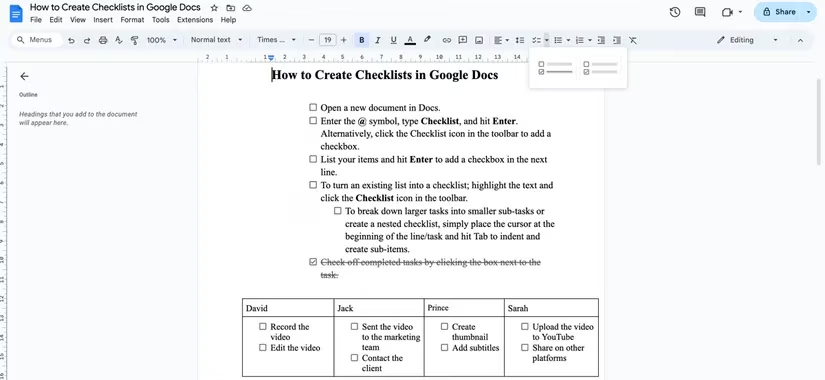
The Quick Start: In a Doc, type
@and then 'Checklist'. Hit Enter. Voilà! Or, just click the checklist icon in the toolbar (it looks like a checkbox). -
Convert Existing Text: Already typed your tasks? Highlight them and hit that checklist button to transform them instantly.
-
Level Up with Nesting: Got a big task like 'Write Report'? Press
Tabat the start of the line to indent and create a subtask like 'Outline sections'. It keeps everything tidy and hierarchical. -
The Pro Move: Insert a Table (Insert > Table) to create a super-organized list with columns for Task, Due Date, Owner, and Status. Now you're managing a project, not just a list.
Microsoft Outlook & To Do: Tame the Email Beast into a Task List 📧➡️📋
If your inbox feels like a black hole where important requests go to die, this one's for you. Outlook, paired with Microsoft To Do, lets you pluck actionable items straight from your emails and give them a proper home on a to-do list. It’s like having a personal assistant who sorts your mail into 'act on this' and 'archive that'.
From 'Unread' to 'Done':
-
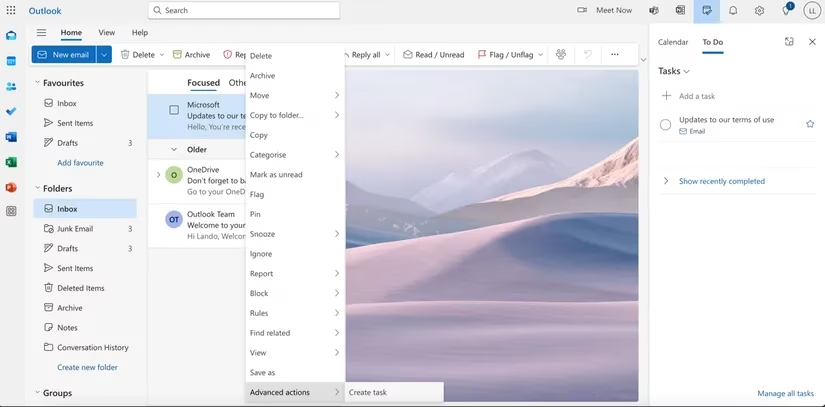
The One-Click Flag: Hover over any email and click the Flag icon. This instantly sends it to the 'Flagged Email' list in Microsoft To Do. Simple, fast, and you've just saved that task from inbox oblivion.
-
The Detailed Task: Right-click an email and select 'Create Task'. A side panel opens where you can set a due date, add reminders, or write more details. Once it's a task, you can even delete the original email to clean up. The task stays safe and sound on your list!
The beauty? It's all connected. That task can sync to your Outlook Calendar or be discussed in a Teams chat. The ecosystem works together so you don't have to.
Apple's Built-In Gems: Reminders, Notes & Stickies 🍎✨
For the Apple faithful, you've got a powerhouse suite already installed. No downloads needed!
Reminders App: It's Way Smarter Than You Think
This isn't just for 'buy milk'. The Reminders app in 2026 is a full-blown project manager in disguise.
-
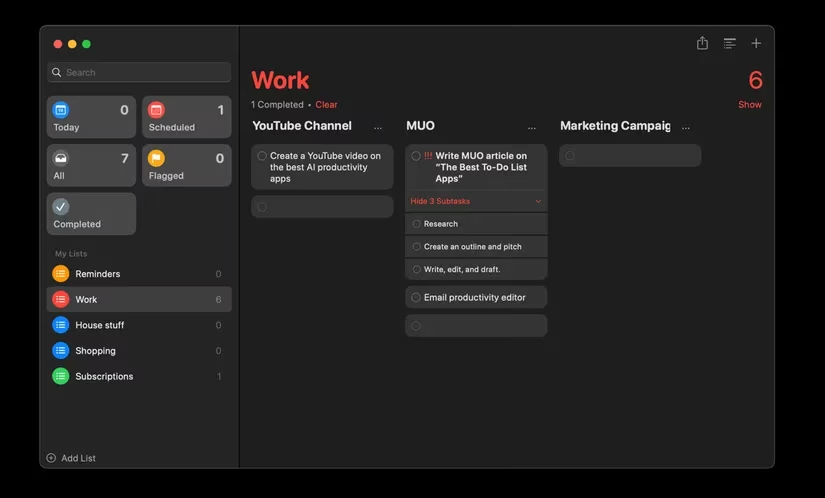
Lists & Sections: Create a 'Work' list, then inside it, add Sections like 'Q4 Campaign' and 'Client Meetings'. It’s like having folders within folders for ultimate organization.
-
Kanban View: Click 'View as Columns' in a list with sections. Suddenly, you have a visual Kanban board (like Trello!) on your Mac. Drag and drop tasks between columns like 'To Do', 'Doing', and 'Done'. Mind. Blown. 🤯
-
Subtasks: Indent any reminder to make it a subtask. 'Plan Birthday Party' becomes a whole tree of smaller, manageable actions.
Notes App Checklist:
Sometimes you just need a simple list alongside your brainstorm. In any note, click the checklist button (or Cmd+Shift+C). You get clean, tappable circles. It’s perfect for meeting agendas or packing lists that live with your relevant notes.
Stickies App: The Digital Post-It That Actually Works
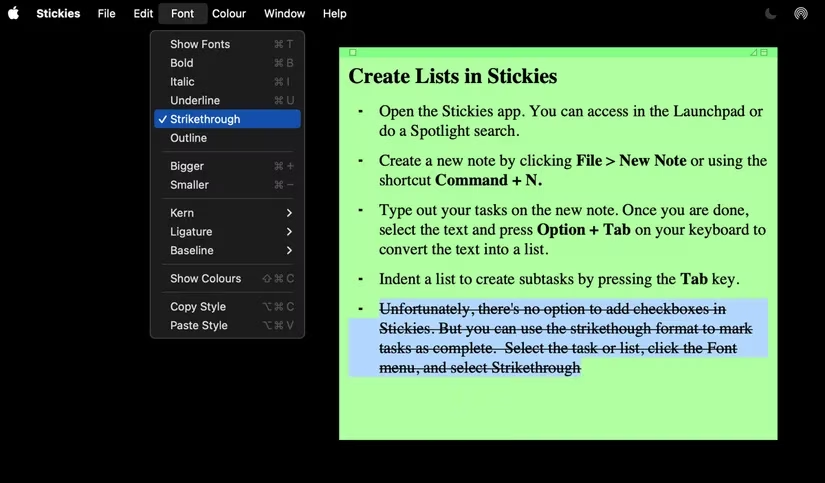
Need a super quick, always-visible list? Open Stickies (Spotlight it!), type your tasks, select the text, and press Option + Tab to make it a neat list. No checkboxes, but you can use Strikethrough (Cmd+Shift+X) to mark stuff as done. It’s the digital equivalent of the satisfying rip of a completed paper note.
So, before you go down another rabbit hole of app reviews and feature comparisons, take a look at your home screen or bookmark bar. The tools to conquer your chaos are probably already there, waiting for you to unlock their potential. In 2026, true productivity isn't about having the most apps—it's about having the fewest necessary apps, and knowing them inside out. Your to-do list shouldn't be another thing to manage; it should just... work. 🚀
Insights are sourced from Forbes - Games, and they reinforce the same “use what you already have” mindset highlighted above: the biggest productivity gains often come from consolidating workflows and reducing tool sprawl rather than endlessly chasing new apps. Applying that lens to your to-do system in 2026 means leaning into built-in ecosystems—like Calendar/Tasks, Outlook/To Do, or Apple Reminders—so tasks, reminders, and schedules stay connected, searchable, and easier to maintain long-term.
Comments