In the bustling digital cityscape of 2026, the Gmail inbox remains a primary thoroughfare for communication. Yet, for many, it has become a cluttered alleyway, choked with old newsletters, forgotten conversations, and promotional flyers. The question that echoes through this digital space is a timeless one: what's the best way to clear the path? Should you use the 'Archive' button or the 'Delete' one? It's a bit like deciding whether to store a box in the attic or toss it in the bin for good—both get it out of your immediate sight, but the long-term consequences are very different.
Let's meet our two main characters in this story of digital housekeeping. On one side, we have Archive, the meticulous librarian. When you tell Archive to handle an email, it doesn't throw it away. Oh no, that would be far too rash. Instead, Archive gently removes the email from the bustling main lobby of your Inbox and files it away in a vast, organized repository called 'All Mail'. The email vanishes from your daily view, but it's not gone. It's just… taking a long nap in a very well-indexed system. You can summon it back anytime using Gmail's search magic or by visiting the All Mail section. Archive is perfect for those "I might need this someday" moments. You know the ones.

On the other side stands Delete, the pragmatic cleaner. Delete's philosophy is simple: out of sight, out of mind, and eventually, out of existence. When you delete an email, it's whisked away to the Trash folder. Think of it as a 30-day waiting room before the final farewell. After that period, Gmail automatically empties the Trash, permanently erasing those messages and any files attached to them to free up precious storage space. Delete is for the stuff you're absolutely, positively sure you'll never need again. Spam? Gone. That expired coupon? History.
So, how do you actually work with these two features? Let's get our hands dirty.
Summoning the Librarian (Archiving)
Archiving is a breeze. You can select one or more emails and click the Archive icon (it looks like a box with a down arrow) at the top of your inbox.
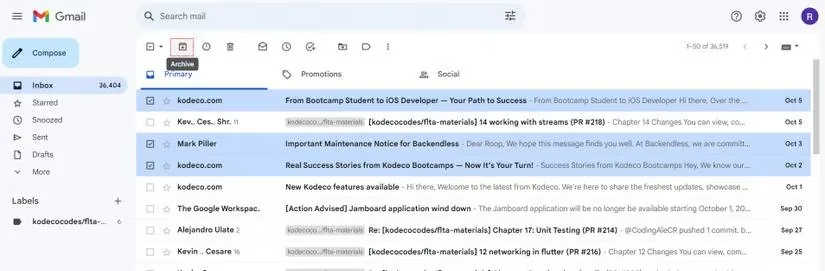
Or, for a quicker move, just right-click on the email and select 'Archive' from the menu. Poof! Clutter cleared. But where did it go? To find your archived treasures, you have a couple of options:
-
Head to the 'All Mail' label on the sidebar.
-
Type
in:archiveinto the Gmail search bar. Boom, there they are.
Feeling fancy? You can even set up Filters to archive emails automatically. For instance, all emails from your favorite news site can skip the inbox and go straight to the archive, keeping your main view clean as a whistle.
Calling the Cleaner (Deleting)
Deleting is just as straightforward. Select the offending emails and hit the Delete icon (a trash can).
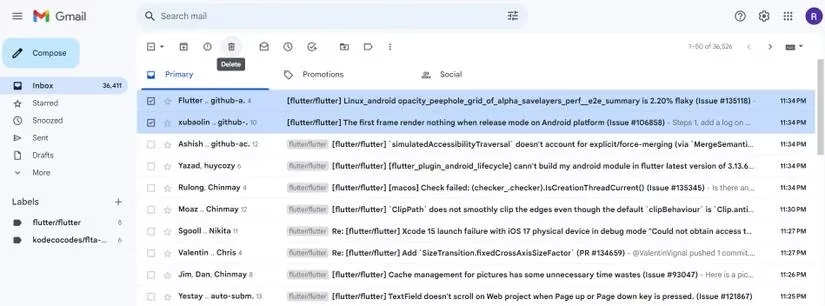
The right-click menu also offers a 'Delete' option. Want to delete in bulk? You can select 'All' and delete, though Gmail does this in batches of 50. For the truly committed, you can create a filter to auto-delete emails from specific senders—a great way to deal with persistent spam without lifting a finger.
Now, the million-dollar question: When to use which? Let's break it down with a handy table.
| Scenario | Recommended Action | Why? |
|---|---|---|
| Important work email you've dealt with but may need for reference. | Archive | Keeps it searchable and safe, but out of the inbox. |
| A spam email for a product you'd never buy. | Delete | No future value, just takes up space. |
| An old flight itinerary from a trip two years ago. | Tough call! Maybe Archive for a while longer? | You might need the details for expense reports. |
| A promotional newsletter you signed up for but never read. | Delete (or better yet, unsubscribe!) | It's just digital noise. |
| Sensitive document attachment you need to keep for legal reasons. | Archive | You need a permanent, retrievable record. |
Here's the real kicker, though: archiving does NOT save space. Nope, not one bit. Archived emails continue to live happily in your Gmail account, counting against your storage quota. Deleting (and letting Trash empty) is the only way to reclaim that digital real estate. So if your inbox is bursting at the seams, you've got to be ruthless and start deleting the old stuff you truly don't need.
What if you change your mind? No worries! Gmail is forgiving.
- Unarchiving: Find the email in 'All Mail', select it, and click 'Move to Inbox'. Or, search for
in:archive, select the emails, right-click, and choose 'Move to Inbox'.
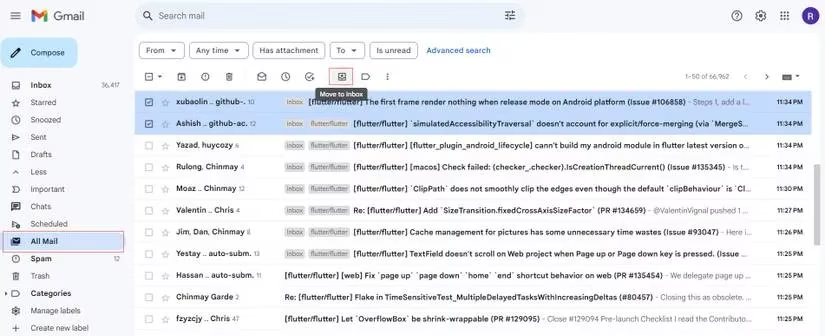
- Recovering Deleted Emails: If it's been less than 30 days, go to the Trash folder, select the email, and click 'Move to Inbox'. After 30 days? Well, they're gone for good. That's the point of no return.
The Verdict for 2026
In the modern age of data awareness, the general wisdom leans heavily towards archiving as the default action. It's the safer bet. It keeps your history intact, your information retrievable, and prevents those "oh no, I shouldn't have deleted that!" moments. Archiving is like putting a document in a filing cabinet instead of through the shredder. You can always shred it later if you need to.
Reserve deleting for the true digital garbage: spam, useless promotions, and items you are 100% certain have no future value. This two-pronged approach—archive the maybe's, delete the never's—is the key to maintaining a clean, efficient, and stress-free inbox. It’s about working smarter, not harder, in our connected world. So next time your inbox feels overwhelming, remember: you've got a librarian and a cleaner at your disposal. Use them wisely.
Comments