Balancing work, chores, and personal projects can feel like a circus act. You’re cooking dinner while mentally tracking a work deadline, all while the laundry buzzes in the background. It’s no wonder that setting multiple timers has evolved from a simple kitchen hack into a full‑blown productivity superpower. Instead of frantically recalculating minutes in your head, the right app or website handles the mental load, letting you glide through tasks with surprising calm. In 2026, the landscape of multi‑timer tools is richer than ever, with sleek designs, cloud syncing, and thoughtful features that turn chaotic days into manageable rhythms. Let’s explore the very best options available right now.
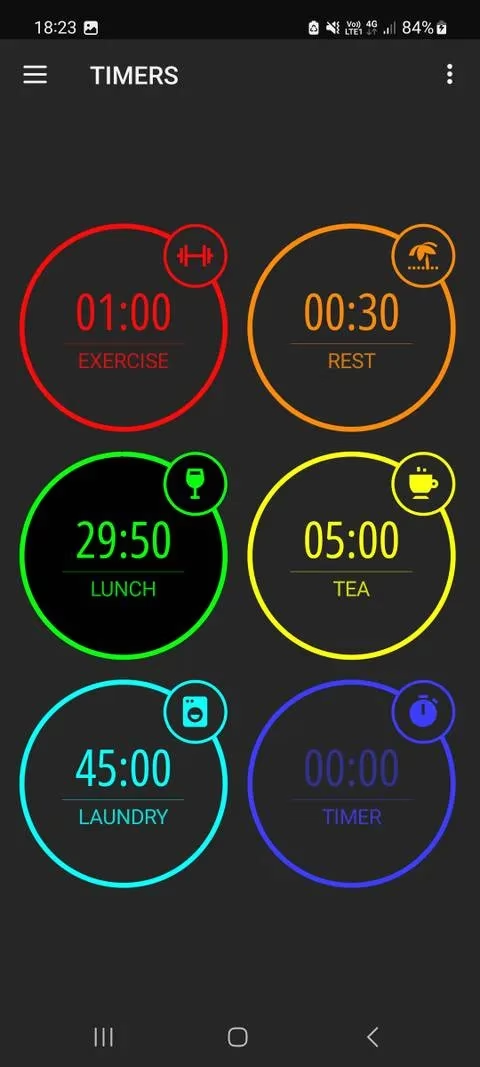
A long‑standing favorite that has aged beautifully is MultiTimer. Available on both Android and iOS, it offers a vibrant board view where each timer gets its own colorful tile. You can choose between an Adaptive Layout that automatically arranges tiles or a Flexible Layout that lets you drag them around freely. Long‑pressing a countdown opens a settings page where you can name the timer, pick an icon, assign a color, and decide whether to count down or count up. It even includes a specialized Pomodoro timer for focused study sessions and a CountUp timer for tracking how long you’ve been at a task. Tapping a timer pauses it instantly, so interruptions don’t throw you off. While the free version covers most needs, a subscription unlocks premium features like cloud backup and shared boards—handy for families or roommates.
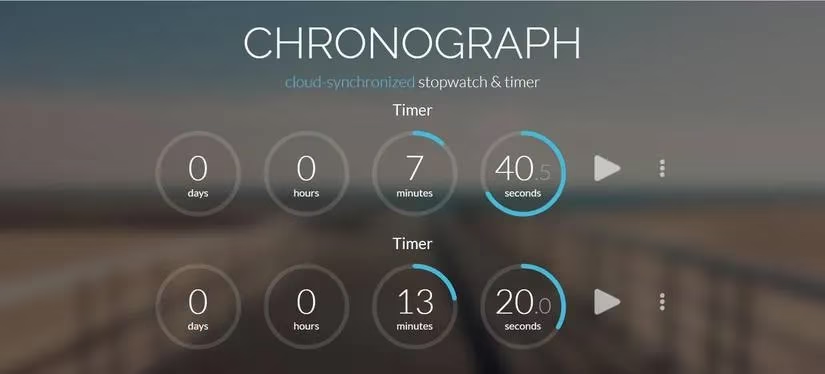
If you’re a fan of browser‑based tools, Chronograph is a cloud‑powered gem that has become even snappier in recent years. Every set of timers you create gets its own unique URL and a scannable QR code, so you can transfer your entire timing setup from your laptop to your phone, or share it with a teammate, without re‑entering a single number. Adding a new timer is as simple as punching in a time, hitting “Start Timer,” and watching it join a clean grid display. When a timer finishes, a gentle ringtone alerts you, and you can set any timer to repeat automatically—perfect for interval training or hydration reminders. The cross‑device magic of Chronograph makes it a standout for anyone who moves between screens throughout the day.
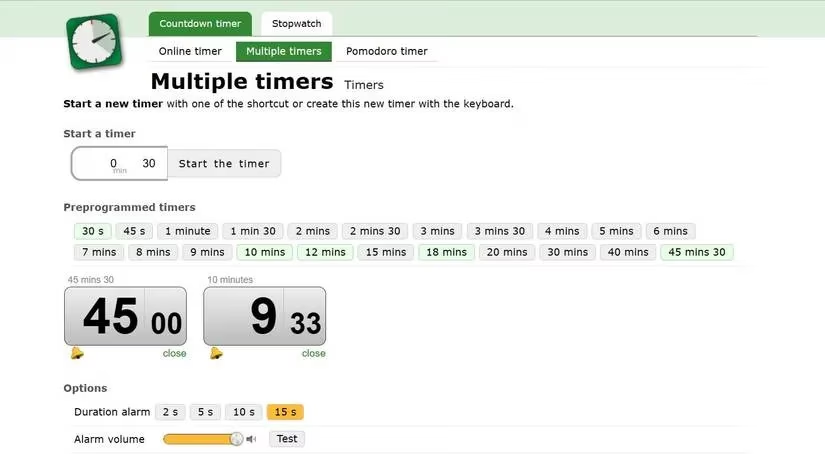
Sometimes you want the fastest possible solution, and that’s where the Multiple Timers website from online‑timers.com shines. It serves up a row of preprogrammed timers (think 5, 10, 15, and 30 minutes) so you can launch a countdown with a single click. You can rename each timer, choose from three different alarm ringtones, and tweak the alarm volume and how long it rings. Timers change color—green for plenty of time, orange for the middle stretch, red in the final seconds—giving you an at‑a‑glance status without reading numbers. A lifesaver feature is the Anti‑Oops mode, which prevents you from accidentally closing the browser tab and losing your entire timing setup. It’s a simple, no‑login‑required tool that has saved many a burnt dinner.
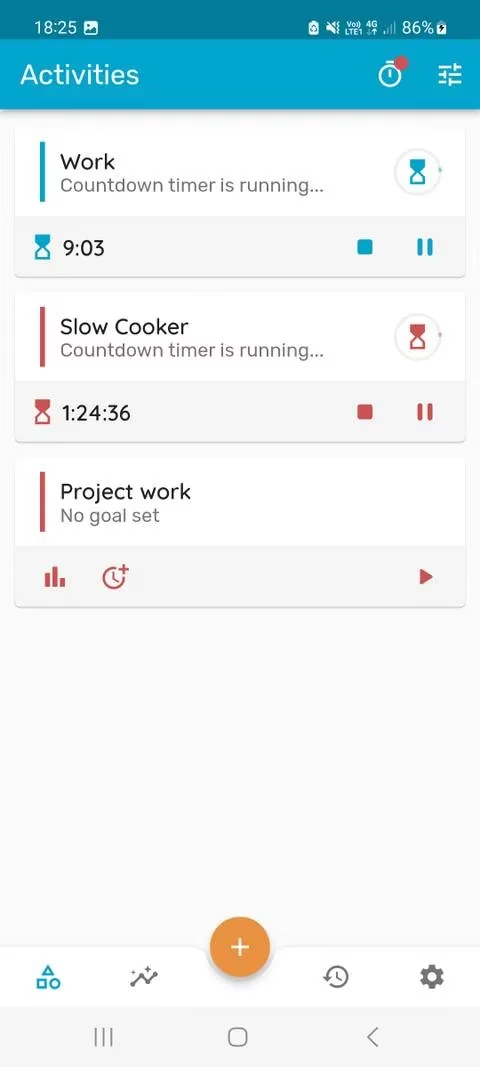
For those who want to do more than just beep when time’s up, Timelog is a revelation. This mobile app merges multiple countdowns with robust time tracking. Head to the Logs tab, create a timer with a specific duration, name it (“Client design draft,” “Morning yoga”), and start. When you stop it, a detailed log records how long you spent on that activity. Over time, patterns emerge—you might notice you consistently underestimate writing tasks, for instance. In the Activities tab, you can set goals: a Target goal encourages you to spend a set amount of time on something meaningful, while a Limit goal gently nudges you to reduce time on distractions. You can even categorize activities with tags. The free version covers essential tracking, and a premium upgrade removes ads and adds data export, turning Timelog into a gentle personal coach.
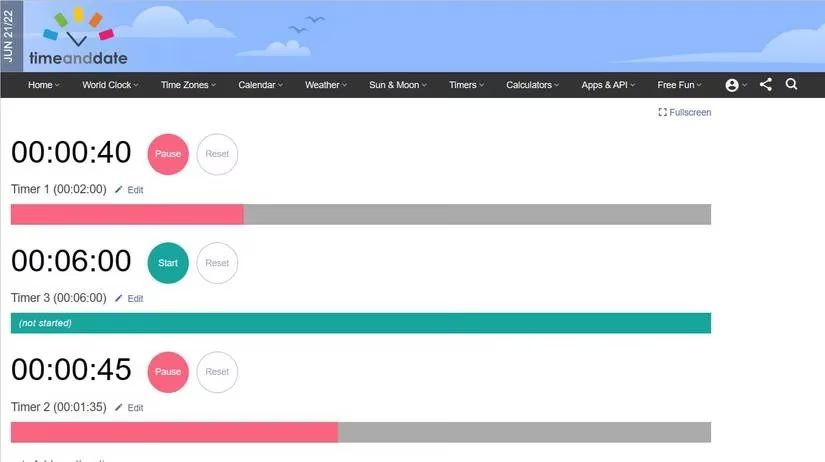
Chances are you’ve already used Time and Date to convert time zones; its multiple timer page deserves equal recognition. The interface is refreshingly calm: a big Start button, a Reset button, and a Fullscreen mode that hides everything except your countdowns. Even after a timer starts, you can hit Edit to add an extra 5 minutes without starting over—a small mercy when you’re mid‑flow. Visual thinkers will love the progress bar beneath each timer, which shrinks as time elapses. You can reorder timers by dragging a tiny handle, and pick from a wide range of alarm sounds, from a soft bell to a jarring buzzer. Because Time and Date requires no account, it’s a go‑to for shared office screens or quick setups on a borrowed device.
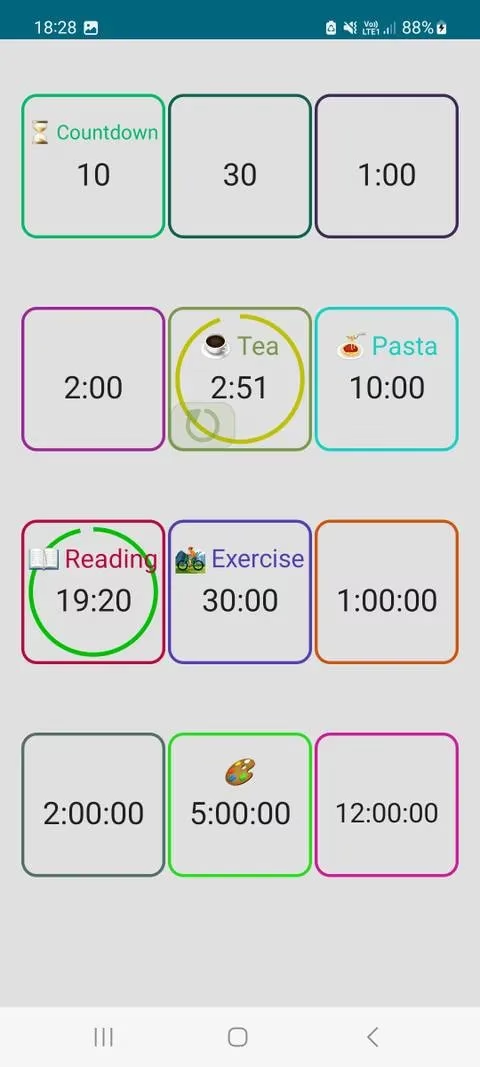
If you value simplicity above all, Timer: Multi Timer for Android is a minimalist’s dream. The home screen is filled with square tiles, and long‑pressing any timer pops up an action pad. From there you can edit the color, toggle vibration, switch to fullscreen, or add a quick 30 seconds if life interrupts. The app supports light and dark themes and offers a screen‑stay‑on option so your device doesn’t sleep mid‑task. You can run timers in the background while checking emails or scrolling recipes, and a persistent notification keeps you informed. A premium version removes ads and adds a few extra perks, but the free version already packs enough punch for most daily juggling acts.
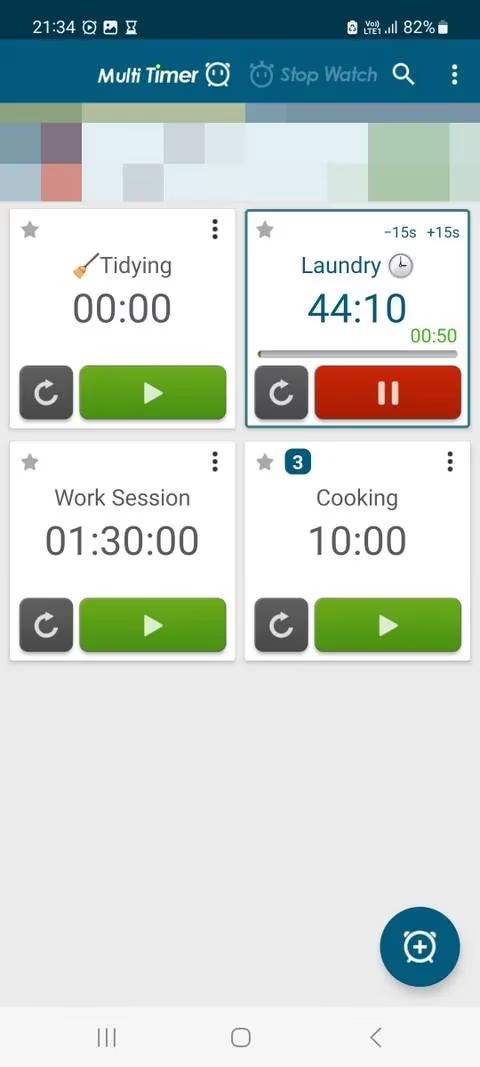
Freelancers and chronic multitaskers often need to bundle timers into logical groups, and Multi Timer StopWatch (Android) / Timer+ (iOS) delivers exactly that. Tap the three‑dot menu to create a group like “Morning routine” or “Client work,” and your timers stay neatly organized. A notification bar mini‑view lets you monitor countdowns without opening the app, and you can batch‑edit several timers at once—change their colors or add 2 minutes to all of them with one action. The Timer History feature is a hidden gem, letting you look back at past sessions to gauge long‑term productivity trends. During setup, you can choose a display style that clicks with your brain, and rearranging timers is as easy as dragging them into place. The free version is generously featured, while the premium tier offers extended history and themes.
Whether you’re orchestrating a dinner party, tackling freelance deadlines, or simply trying to give equal attention to work and rest, these tools prove that time doesn’t have to be a tyrant. Each app brings its own flavor—cloud syncing, progress bars, activity logs, or dead‑simple presets—so you’re bound to find one that matches your rhythm. Try mixing and matching a couple until your days start to feel less like a sprint and more like a well‑choreographed dance. After all, in a world that asks you to be everywhere at once, a little timed structure is a radical act of self‑care.
Comments