Let me tell you, when I first started using Obsidian back in the day, I was thrilled with its markdown simplicity and the power of connecting ideas. But honestly, it still felt like I was spending too much time on formatting—adding the same headings, the same structure, over and over again. That all changed when I truly embraced templates. It wasn't just a time-saver; it completely transformed how I think, organize, and create within my vault. Today, in 2026, templates aren't just a hidden gem; they're the cornerstone of an efficient digital mind. They help me move from chaotic note-taking to structured knowledge building without the mental overhead.
Why Templates Are My Obsidian Game-Changer
I used to think templates were just about saving a few clicks. Boy, was I wrong. They do save a massive amount of effort on formatting, but their real magic lies in thought organization. Think about it: our notes often follow patterns. A meeting note always needs attendees and action items. A book note needs a summary and key quotes. A daily journal needs space for goals and reflections. Before templates, I'd open a blank page and try to remember that structure every single time. Sometimes I'd forget crucial sections—like the time I needed a medication's contraindications and found my old note completely blank on that detail! 😅
Templates solve this by providing a ready-made scaffold. The moment I create a new note from a template, my thinking is already guided. It ensures consistency and, most importantly, it acts as a checklist for my brain. An empty heading in the template screams at me to fill it in, so nothing gets missed. It turns note-taking from a creative writing exercise into a systematic data-gathering process.
My Simple Guide to Creating Your First Template
Setting up templates in Obsidian is incredibly straightforward. You don't need to be a coder! Here's the exact process I followed, and still use today:
-
Create a Template Folder: First, I made a new folder in my vault. I named it something obvious like
_Templates. This keeps all my blueprints in one, tidy place. -
Craft Your Blueprint Note: Inside that folder, I created a new note. This note is the template. I got creative here, adding all the elements I want to see every time.
-
Headings & Structure: I use
##for main sections and###for subsections. -
Bullet Points & Checklists: Perfect for action items or key points.
-
Markdown Tables: Great for comparison or habit tracking.
-
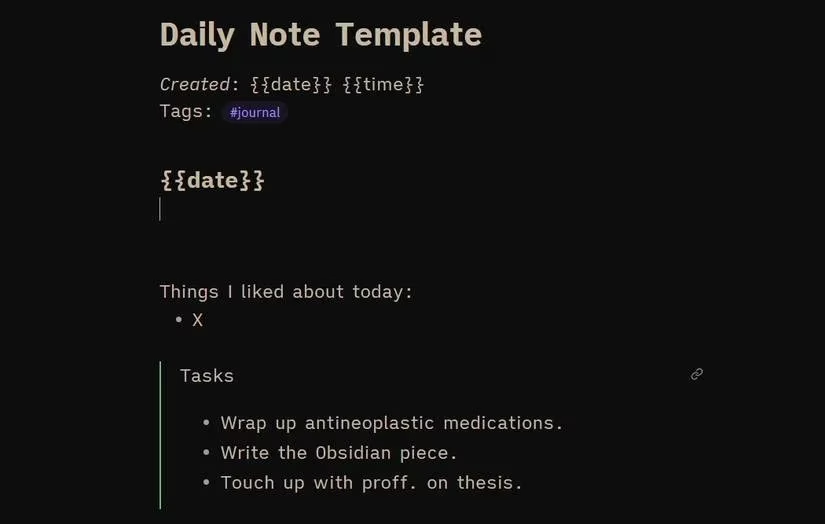
Dynamic Dates: This is a killer feature! By typing
{{date}}and{{time}}, Obsidian automatically inserts the current date and time when I use the template. No more manual typing!
-
-
Enable the Core Plugin: Obsidian has a built-in Templates plugin. I went to
Settings->Core Pluginsand made sure it was switched on. -
Point Obsidian to Your Folder: I clicked the little gear icon next to the enabled Templates plugin. In the settings, I simply selected my
_Templatesfolder as the designated template location.
How I Use Templates Every Single Day
Using a template is even easier than making one. Here’s my daily flow:
-
I create a new note (for my daily journal, a meeting, etc.).
-
I open the Command Palette with
Ctrl+P(orCmd+Pon Mac). -
I type "Insert Template" and select the command.
-
I choose the template I need from the list.
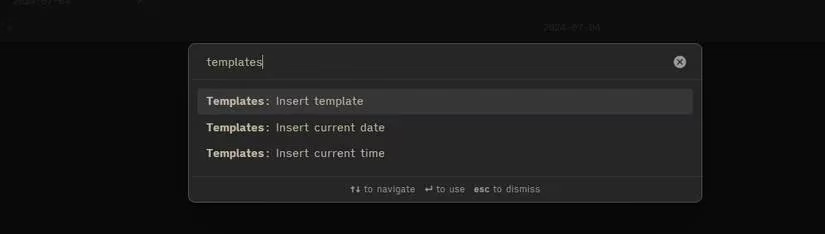
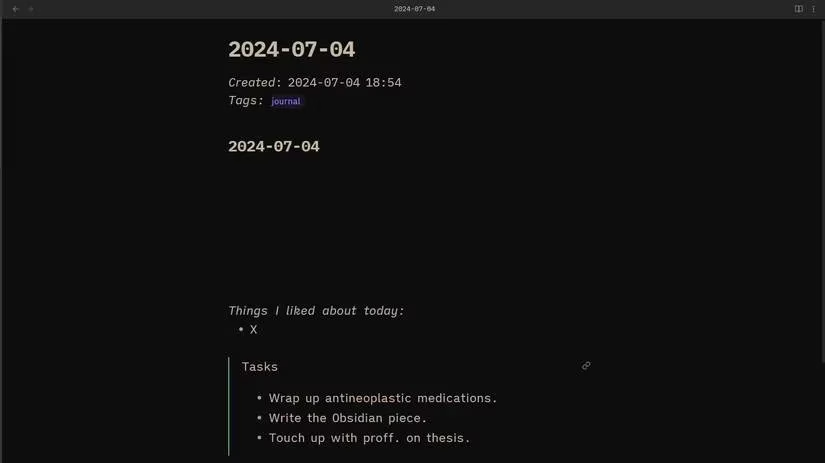
Like magic, the entire pre-formatted structure pops into my new note, ready for content. The time I save is phenomenal, and the quality of my notes has skyrocketed because I'm not forgetting key sections anymore.
Template Ideas That Revolutionized My Workflow
Don't know where to start? Let me share the templates that live rent-free in my vault:
| Template Type | Key Sections I Include | Why It's a Game-Changer |
|---|---|---|
| 📅 Daily Notes | Date, Top 3 Goals, Habit Tracker, Evening Reflection | Creates a consistent journaling practice without daily setup. |
| 👥 Meeting Notes | Attendees, Agenda, Decisions, Action Items (with owners!) | Makes meeting follow-ups effortless and accountable. |
| 📚 Book & Article Notes | Metadata (Author, Title), Summary, Key Quotes, My Thoughts, Actionable Insights | Transforms passive reading into active learning and integration. |
| 🔬 Research Notes | Research Question, Hypotheses, Findings, Sources, Next Steps | Keeps complex projects organized and logically progressing. |
| 💡 Project Brainstorm | Core Idea, SWOT Analysis (Strengths, Weaknesses, Opportunities, Threats), First Steps | Provides a structured framework for chaotic creative energy. |
The beauty is, you can start simple. Even a template with just a few headings is a huge leap forward from a blank page.
Leveling Up: Community Templates and Advanced Tools
Once I got the hang of making my own, I discovered a whole world out there. The Obsidian community in 2026 is more vibrant than ever, with shared repositories full of pre-made templates for everything from academic research to novel writing. Don't feel like you have to build everything from scratch! Browsing these can give you fantastic ideas.
For those who want to go further, there's the incredible Templater plugin. While the core template feature is powerful, Templater is like giving your templates a supercomputer brain. It allows for:
-
Custom JavaScript Functions: Automate complex text manipulation.
-
Dynamic File Creation: Create multiple linked notes from one command.
-
Deep Data Integration: Pull information from other notes or databases automatically.
I started with the core plugin and eventually graduated to Templater for my more complex workflows. My advice? Master the basics first. The core functionality will cover 95% of your needs. When you find yourself thinking, "I wish this template could do something more intelligent," that's your cue to explore Templater.
So, if you're using Obsidian and still typing out the same structures day after day, stop! Take an hour to build a few basic templates. It's the single highest-return investment you can make in your PKM (Personal Knowledge Management) system. It frees your mind from the mechanics of note-taking and lets you focus on what truly matters: the ideas themselves. Happy templating! 🚀
Comments